

 ALL PLUGINS
 CONTACT
Welcome to the MLABS Payment, Licensing & Activation Guide. This guide explains how to activate your free evaluation, choose the right license plan for your team, manage recurring subscriptions, and retrieve official tax invoices.
A single MLABS license key grants full access to both our Autodesk Revit solutions (Export Revit Sheets to DWG) and our AutoCAD solutions (Batch Merge DWG Files). You never need to purchase separate licenses for Revit and AutoCAD!
1. Overview & Unified Licensing
MLABS develops high-performance automation tools for BIM and CAD workflows. To give you maximum confidence before committing, all tools come with hassle-free trial options. When ready to purchase, we offer secure, tax-compliant checkout via Lemon Squeezy (our primary Merchant of Record) as well as the Autodesk App Store.
2. How to Activate Your Free Trial
When you install the plugin and execute any command from the Revit or AutoCAD ribbon, the activation authorization dialog automatically presents available options:
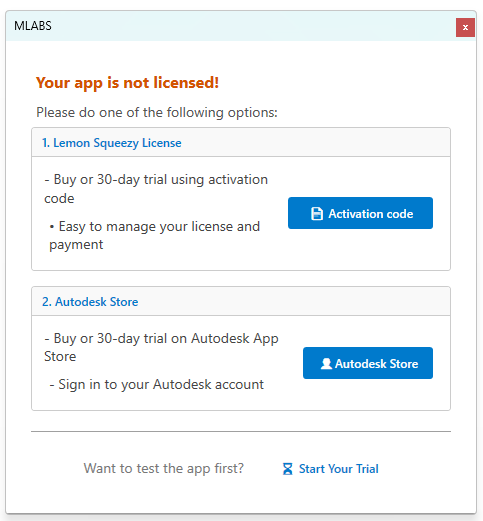
2.1. Instant 7-Day Local Trial (No Credit Card Required)
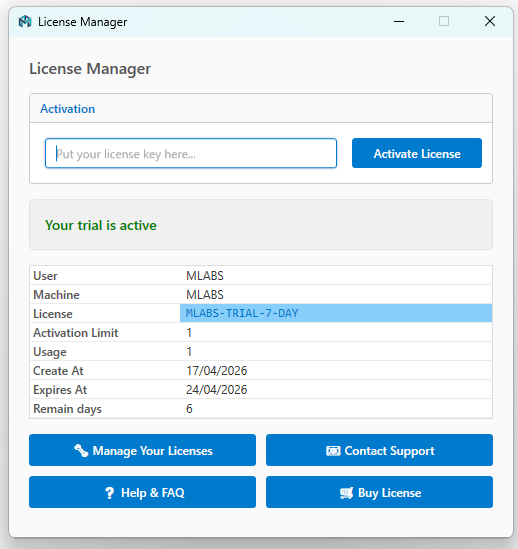
If you have just installed the plugin for the first time, our built-in offline engine automatically activates a 7-day unrestricted trial upon launching your first command. No credit card, no email registration, and no checkout steps are required.
The License Manager window will display your remaining days and active trial status:
2.2. Lemon Squeezy 30-Day Evaluation
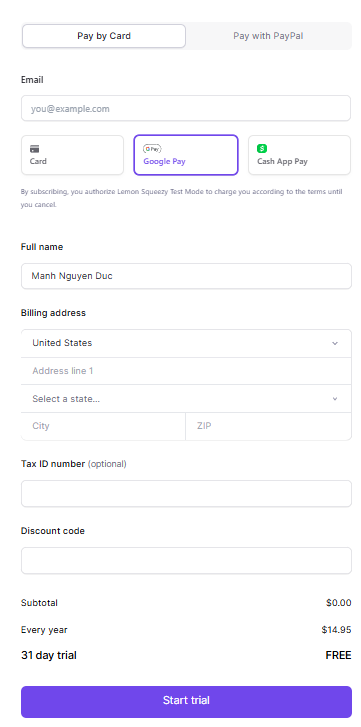
Selecting the Lemon Squeezy License option opens a secure checkout window where you can activate an extended 30-day evaluation. You enter your payment method and click “Start trial”.
Billing begins only after the 30-day trial expires. If you decide the software does not fit your workflow, you can cancel online at any time with a single click before the trial ends and you will never be charged.
2.3. Autodesk App Store Trial (30 Days)
If your organization prefers managing licenses through Autodesk, select Autodesk Marketplace to be redirected to our Autodesk App Store listing. Log in with your Autodesk account and click the blue “Free 30-Day Trial” button.
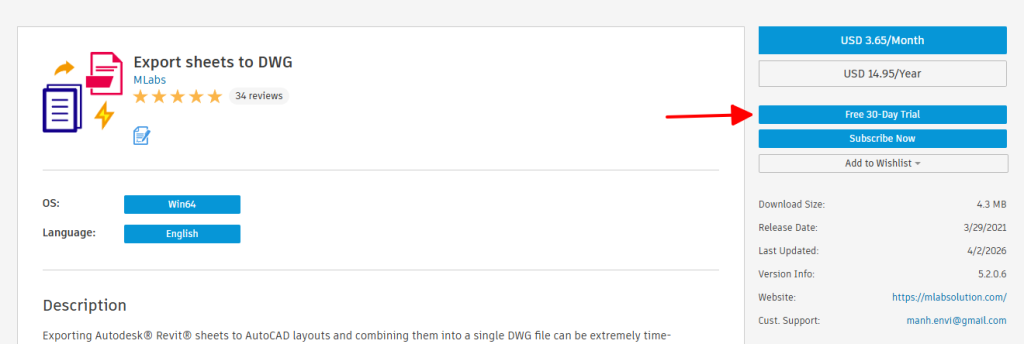
To validate your Autodesk Entitlement trial, you must be signed into Revit and AutoCAD using the exact same Autodesk account used to activate the trial on the Autodesk App Store website.
3. Payment Platforms & Licensing Plans
3.1. About Lemon Squeezy (Merchant of Record)

Lemon Squeezy is an industry-leading payment processor and licensed Merchant of Record (MoR). By acting as the MoR, Lemon Squeezy handles global sales tax calculations, VAT remittance, currency conversion, fraud prevention, and PCI-DSS compliance across 130+ countries. This guarantees maximum security for your transactions and ensures you receive legally compliant tax invoices.
3.2. Licensing Plans Available
We provide flexible purchasing models to match individual freelance projects or large-scale corporate deployments:
A recurring annual plan designed for firms requiring continuous, uninterrupted access to all plugin updates and support.
- Includes a 30-day free trial period before first charge.
- Lowest effective monthly rate.
- Automatic 10% loyalty discount applied from Year 2 onwards.
- Cancel or update billing details online anytime.
A single, non-recurring payment providing 30 days of full access. Ideal for urgent project deadlines, temporary staff, or short-term consultant engagements. Does not auto-renew.
A single, upfront payment for 365 days of access with no automated recurring charges. Ideal for companies with fixed annual project budgets or purchase-order restrictions.
3.3. Multi-User Team Licensing (1 – 10 Seats)
Need licenses for your entire BIM/CAD team? During checkout, our interactive seat selector enables you to choose anywhere from 1 to 10 user seats with a single purchase. The resulting license key can be distributed across your team members and centrally administered.
3.4. Autodesk App Store Option
If your organization is mandated to purchase software exclusively through Autodesk’s marketplace, you can purchase Monthly or Annual subscriptions directly via Autodesk App Store using PayPal or major credit cards.
4. Managing Your Subscription & Invoices
4.1. How to Cancel Your Subscription
You have full autonomy over your subscription. There are no contracts, no cancellation penalties, and no need to email customer service:
- Open Revit or AutoCAD, go to MLabs > About > License, and click “Manage Your License” (or click “View Order” in your original email receipt).
- In your Customer Dashboard, switch to the “Subscriptions” tab.
- Select your active MLABS plan and click “Cancel Subscription”:
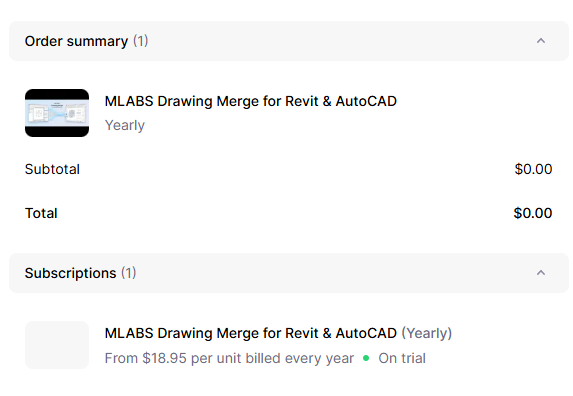
Note: Upon cancellation, you retain full access to all features until the end of your current billing period.
4.2. How to Retrieve Invoices & Add Company VAT / Tax ID
If your accounting department requires an official PDF tax invoice with your company details:
- Visit the portal: mlabs.lemonsqueezy.com/billing
- Enter your purchase email address. Lemon Squeezy will send an instant, secure Magic Link to your inbox.
- Click the Magic Link to log in without needing a password.
- Under Billing history, click any charge to download your official PDF invoice.
Visit app.lemonsqueezy.com/my-orders to look up all historical purchases made through Lemon Squeezy.
Before generating your final PDF invoice, click “Update billing information” in the portal to add your official Company Name, Address, and VAT / Tax Number. The generated PDF will automatically reflect these details for full accounting compliance.
5. Frequently Asked Questions (FAQ)
Q1: Does one license work for both Revit and AutoCAD?
Yes! We operate under a Unified Licensing model. When you purchase a license key or subscribe via Lemon Squeezy, that same key activates both the Export Revit Sheets to DWG Revit plugin and the Batch Merge DWG Files AutoCAD plugin.
Q2: Can I use the plugin on a computer without constant internet access?
Yes. Once activated, your license is validated locally on your machine. You do not require a permanent active internet connection for everyday drafting. An internet connection is only needed during initial activation and periodic background status synchronizations.
Q3: What payment methods are accepted?
Through Lemon Squeezy, we accept all major international Credit/Debit cards (Visa, MasterCard, American Express, Discover), PayPal, Apple Pay, and Google Pay. Transactions are processed in your local currency wherever available.
Q4: How do I transfer my license to a new workstation?
Open the License Manager in Revit or AutoCAD (MLabs > About > License) on your old workstation and click Deactivate. You can then immediately paste your license key into the plugin on your new computer.
Q5: What happens when my 30-day trial expires?
If you activated the trial via an Annual Subscription and did not cancel, your subscription will automatically renew into an active license. If you activated the trial via Autodesk App Store or the initial 7-day local trial, the plugin will simply revert to evaluation mode without charging you, prompting you to enter a license key whenever you wish to resume work.
Customer Care
Billing & License Hub1 license covers both Revit and AutoCAD plugins.
Cancel anytime during trial with zero penalty.
Have questions regarding quotes, invoices, or enterprise licenses?
✉️ Contact Support