

 ALL PLUGINS
 CONTACT
In many architecture and engineering project deliveries, clients, consultants, and municipal authorities demand all drawings directly inside AutoCAD Model Space rather than distributed across Paper Space layout tabs. However, native Revit tools cannot directly convert sheets to Model Space while keeping title blocks intact and scales accurate. Attempting to copy and scale title blocks manually in AutoCAD is tedious, error-prone, and destroys drawing relationships.
To solve this challenge, MLABS developed the Model Space feature in the Export Sheets to DWG plugin suite. This in-depth guide explains how to seamlessly batch export Revit sheets to Model space complete with title blocks, correct dimension scaling, and grid matrix arrangement.
📋 Table of Contents
- 🔹 A. Download & Installation
- 🔹 B. Step-by-Step Guide: Model Space Export (with Title Blocks)
- 1. Launch the “Model Space” Command
- 2. Data Source: Select Sheets, Sheet Sets & Sorting Rules
- 3. Export Configuration: DWG Presets & Output Directory
- 4. AutoCAD Template (.dwt) & Conversion Scale Options
- 5. Engine & Mode: AutoCAD Companion Plugin & Speed Mode
- 6. Execution & Real-Time Multi-Threaded Progress
- 🔹 C. Video Demonstration
- 🔹 D. Key Advantages & Related Workflows
A. Download & Installation
Get ready by ensuring you have the latest version of the MLABS plugin suite installed:
- Download the Plugin: Download the installer directly from our Export Sheets to DWG product page or get the MLABS Installer (.exe). Alternatively, install it from the Autodesk App Store.
- Run Installation: Close any open instances of Revit and AutoCAD, then execute the installation wizard.
- Launch Revit: Open Autodesk Revit (2021, 2022, 2023, 2024, 2025, or newer) and load your project model.
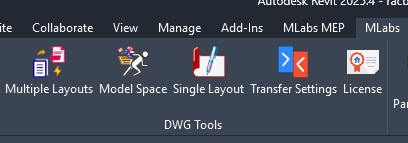
- Locate the Tool: Navigate to the MLABS tab on the Revit ribbon, locate the DWG Tools panel, and click on Model Space:
B. Step-by-Step Guide: Model Space Export (with Title Blocks)
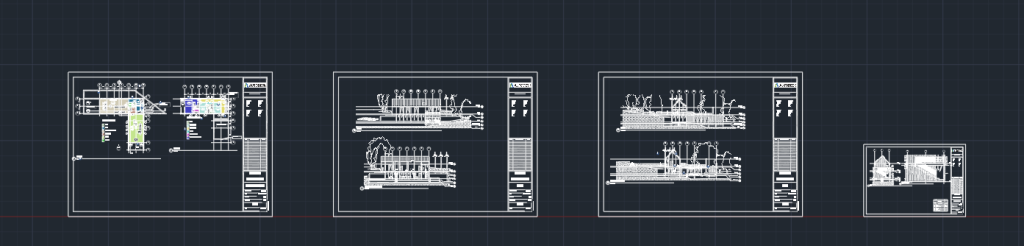
The Model Space command consolidates multiple Revit sheets into a single AutoCAD DWG file, placing every drawing sheet neatly inside Model Space while preserving Title Blocks, view scales, annotations, and key plans.
1. Launch the “Model Space” Command
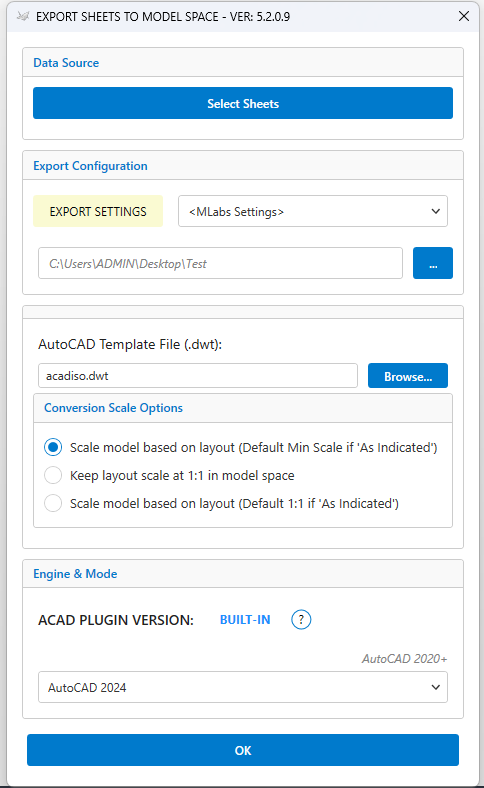
Clicking Model Space opens the dedicated exporter window with four primary control groups:
- Data Source: Choose sheets, filter by saved sheet sets, and set sorting criteria.
- Export Configuration: Apply Revit DWG export setups (layer mappings, pen assignments) and designate the output folder.
- Template & Conversion Scale: Select the host AutoCAD
.dwttemplate and choose how viewport scales translate into Model Space measurements. - Engine & Mode: Monitor the AutoCAD companion engine status and toggle Auto-Detect Speed Mode for maximum throughput.
2. Data Source: Select Sheets, Sheet Sets & Sorting Rules
Under Data Source, click Select Sheets to open the full sheet list manager:
- From Sheet Set Dropdown: Select any existing Revit ViewSheetSet (e.g., Tender Package, Coordination Set) to batch-check all required sheets instantly.
- Multi-Level Sorting Rules: Click Sorting Rules to configure up to 6 nested levels of ordering (Order by, followed by Then by 1 through 5, Ascending or Descending) based on Sheet Number, Sheet Name, or custom shared parameters.
- Interactive Drag-and-Drop: Manually reorder sheet rows directly inside the DataGrid by dragging rows up or down to establish the exact sequence in Model Space.
- Arrangement (Horizontal vs Vertical):
- Horizontal: Places drawings side-by-side from left to right with uniform spacing.
- Vertical: Stacks drawings in a neat vertical column from top to bottom.
3. Export Configuration: DWG Presets & Output Directory
In the Export Configuration panel:
- Export Settings Button: Click to inspect or customize your Revit DWG Export Setup (layer names, colors, projection lines, text fonts, and hatch patterns).
- Setting Preset Dropdown: Select any saved office DWG export preset.
- Output Folder Browse (…): Designate the target folder where the combined master DWG file will be generated.
4. AutoCAD Template (.dwt) & Conversion Scale Options
This is where Model Space exporting differs fundamentally from layout exporting:
a. AutoCAD Template File (.dwt)
Specify the base AutoCAD template file. By default, the plugin loads acadiso.dwt (Metric) or acad.dwt (Imperial). Click Browse… to select your firm’s custom corporate template containing your standard dimension styles, text styles, and CAD layer filters.
b. Conversion Scale Options
Select how drawing scales are transformed into Model Space coordinates:
Scales geometry back up to real-world measurements based on viewport scale. For example, a drawing at 1:50 scale is scaled up 50 times upon export. Measuring a 5,000mm wall in AutoCAD Model Space yields exactly 5,000mm.
Note: If a sheet contains viewports with different scales (“As indicated”), the plugin automatically scales based on the finest (minimum) scale available to prevent loss of precision.
Transfers objects into Model Space with coordinates matching their exact printed paper dimensions (e.g., an A1 title block measures 841 x 594 mm). Ideal when consultants require an exact replica of plotted sheets in Model Space.
5. Engine & Mode: AutoCAD Companion Plugin & Speed Mode
The Engine & Mode section manages background automation and performance acceleration:
- ⚙️ BUILT-IN (Blue): The silent companion add-in is installed in your local AppData directory (`%APPDATA%\Autodesk\ApplicationPlugins`). No administrative permissions are needed.
- 🚀 STANDARD (Green): The standalone MLABS AutoCAD plugin is active.
- ⚠️ UNAVAILABLE (Red): Clicking the status button automatically triggers silent deployment.
🚀 Auto-Detect Speed Mode
When checked (default), the plugin evaluates grouping efficiency across selected sheets. Sheets sharing the same TitleBlock family are grouped and processed together:
- A confirmation dialog prompts you to verify TitleBlock labels (Sheet Number, Sheet Name, Scale).
- Batch injection dramatically accelerates drawing generation—delivering speeds up to 5–10x faster than standard one-by-one export.
6. Execution & Real-Time Multi-Threaded Progress
Click OK to initiate the export process:
- A multi-threaded progress bar displays real-time milestones: sheet validation, geometry extraction, AutoCAD background matrix placement, title block preservation, and database audit.
- Duplicate blocks and orphaned entities are automatically purged.
- Upon completion, the final consolidated master DWG opens immediately in AutoCAD or reveals the destination folder in Windows File Explorer.
C. Video Demonstration
Watch the complete Model Space export workflow in action below:
D. Key Advantages & Related Workflows
- 🏛️ 100% Title Block Preservation: Keeps Title Blocks, revisions, stamps, and sheet legends intact directly in Model Space.
- 📐 True Plotted Scale (1:1 Measuring): Real-world dimensions in AutoCAD match physical measurements without tedious manual scaling.
- ⚡ High-Performance Speed Mode: Export large drawing sets in seconds rather than hours.
- 🔄 Built-in AutoCAD Add-in: Includes extra AutoCAD tools on the MLabs tab (Batch Merge, Raster to OLE, Colorize Tabs, Batch Print).
Explore More Revit-to-AutoCAD Guides: