

 ALL PLUGINS
 CONTACT
Exporting multiple Revit sheets into AutoCAD layouts and combining them into a single consolidated DWG file has traditionally been one of the most frustrating, repetitive tasks in BIM documentation. By default, Revit exports each sheet into a separate DWG file with only a single layout. Merging dozens of individual drawing files manually in AutoCAD consumes hours of tedious CAD drafting and risks viewport scaling errors.
To solve this challenge, MLABS developed the Multiple Layouts feature within the Export Sheets to DWG plugin. This comprehensive tutorial walks you through every configuration option, sorting rule, and background automation step based on the latest version.
📋 Table of Contents
- 🔹 A. Download & Installation
- 🔹 B. Step-by-Step Guide: Multiple Layouts Command
- 1. Launch the Command from Revit Ribbon
- 2. Data Source: Select Sheets, Sheet Sets & Multi-Level Sorting
- 3. Export Configuration: DWG Presets & Destination Folder
- 4. Engine & Mode: AutoCAD Companion Plugin & Merging
- 5. Advanced Settings: Layout Naming, Page Setup & Sheet Set Manager
- 6. Execution & Real-Time Multi-Threaded Progress
- 🔹 C. Video Demonstration
- 🔹 D. Key Benefits & Related Workflows
A. Download & Installation
Before beginning, ensure you have the latest version of the MLABS plugin suite installed:
- Download the Plugin: Download the latest installer directly from the Export Sheets to DWG product page or get the MLABS Installer (.exe). You can also install it via the Autodesk App Store.
- Run the Setup: Close all running instances of Revit and AutoCAD, then run the installer wizard.
- Open Revit: Launch Autodesk Revit (2021, 2022, 2023, 2024, 2025, or newer) and open your BIM project.
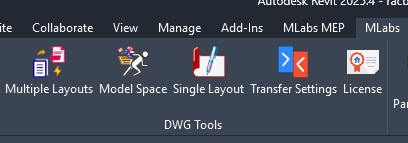
- Locate the Ribbon Tab: Navigate to the MLABS tab on the main Revit ribbon, locate the DWG Tools panel, and click on Multiple Layouts:
B. Step-by-Step Guide: Multiple Layouts Command
The Multiple Layouts command is the core engine for exporting multiple Revit drawing sheets into a single AutoCAD drawing file with individual layout tabs in Paper Space.
1. Launch the Command from Revit Ribbon
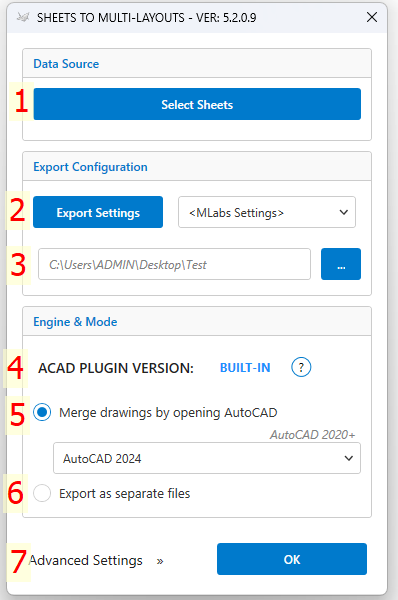
Clicking Multiple Layouts opens the main exporter configuration window. The window is divided into three intuitive sections:
- Data Source: Manage sheet selection, sheet set presets, and ordering rules.
- Export Configuration: Apply Revit DWG export setups (layer mappings, pen assignments) and choose output paths.
- Engine & Mode: Monitor the companion AutoCAD plugin status and toggle drawing merge mode.
- Advanced Settings (Flyout): Set layout naming conventions, AutoCAD plotters, and Sheet Set Manager options.
2. Data Source: Select Sheets, Sheet Sets & Multi-Level Sorting
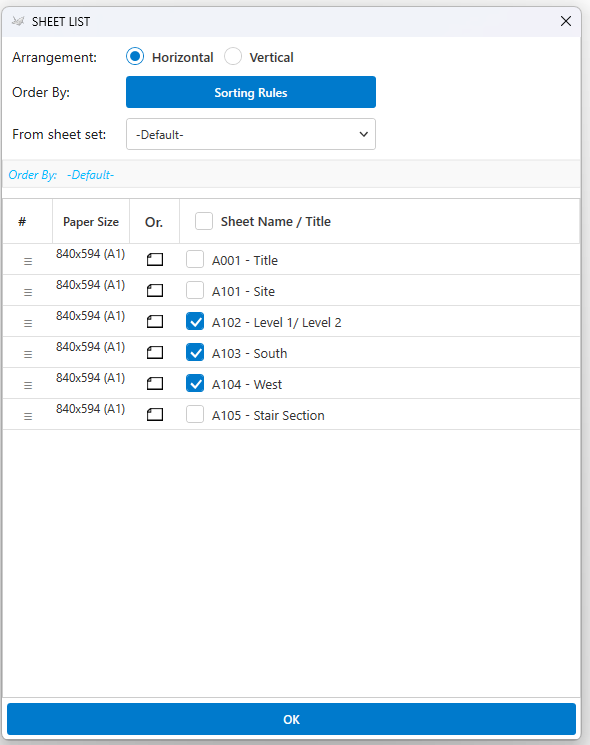
Under the Data Source section, click Select Sheets to open the interactive Sheet List manager window:
a. Filter by Saved Revit Sheet Sets (“From sheet set”)
Instead of manually checking individual sheets every time, choose any pre-defined ViewSheetSet from your Revit project (e.g., Architectural Submission Set, MEP Coordination Set). The list automatically checks all associated sheets in one click.
b. Multi-Level Sorting Rules (“Sorting Rules”)
AutoCAD layout tabs should follow strict project sequencing. Click the Sorting Rules button to open the nested sorting dialog:
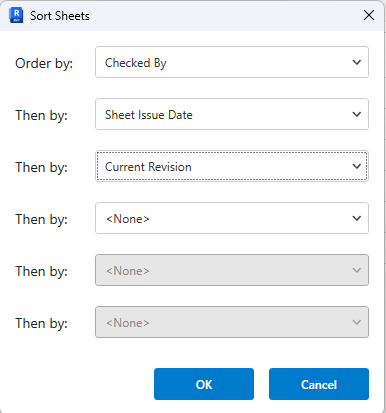
- Supports up to 6 levels of nested sorting (Order by, followed by Then by 1 through 5).
- Sort by standard parameters (Sheet Number, Sheet Name) or custom shared parameters (Discipline, Volume, Package).
- Choose Ascending (A-Z) or Descending (Z-A) sorting. Natural alphanumeric ordering ensures
A102comes beforeA110correctly.
c. Interactive Drag-and-Drop Reordering
Need custom adjustments? Simply click and drag any row in the DataGrid up or down to set the exact sequence of layout tabs in the exported DWG file.
d. Model Space View Arrangement
While each sheet is placed on its own layout tab, the underlying model space views are also organized neatly:
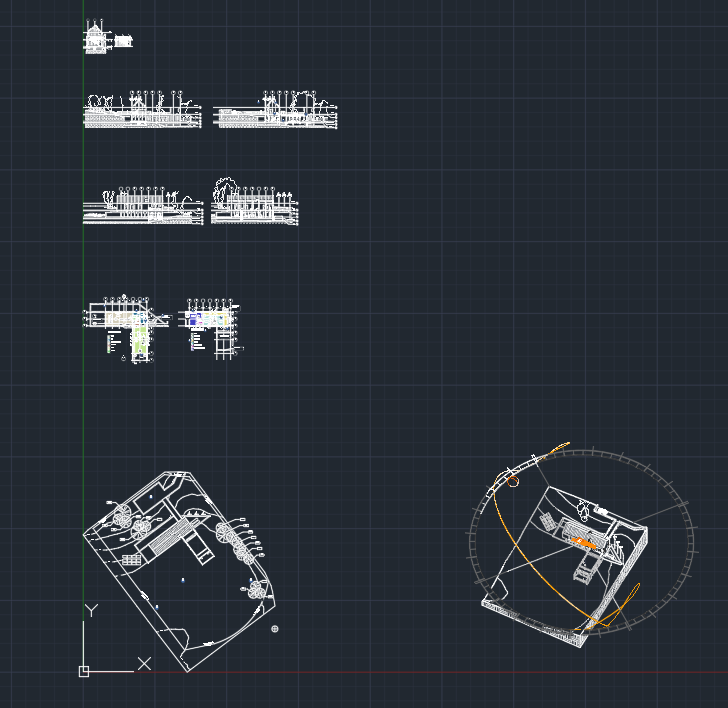
- Horizontal: Arranges model space views side-by-side horizontally.

- Vertical: Arranges model space views in a vertical column.
3. Export Configuration: DWG Presets & Destination Folder
In the Export Configuration box, select how Revit graphics will be translated into AutoCAD CAD primitives:
- Export Settings Dropdown: Select any existing Revit DWG Export Setup from the dropdown.
- Export Settings Button: Click the button to inspect layer mappings, color definitions (ACI vs RGB), fonts, and hatch patterns.
- Select Output Folder: Click the … button to browse and designate the export directory. The plugin remembers your last used directory for convenience.
4. Engine & Mode: AutoCAD Companion Plugin & Merging
The Engine & Mode section controls the background merging pipeline:
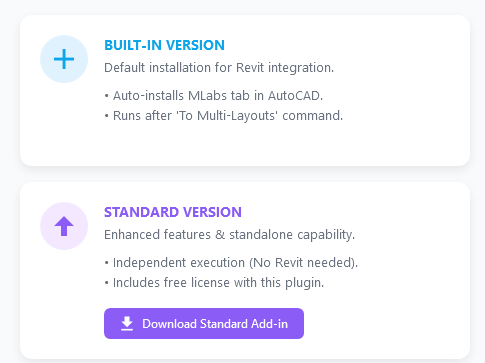
- ⚙️ BUILT-IN (Blue): The silent companion add-in is active in AutoCAD. It is automatically installed into user AppData without requiring administrator privileges.
- 🚀 STANDARD (Green): The full standalone MLABS AutoCAD plugin is installed.
- ⚠️ UNAVAILABLE (Red): Clicking the status button triggers automatic silent deployment.

Note: AutoCAD LT is NOT supported because Autodesk disabled external .NET and LISP API automation in LT versions.
- Merge drawings by opening AutoCAD (Toggle ON): Automatically runs the background AutoCAD engine to assemble all sheets into separate paper space layout tabs within a single master DWG.
- Export as separate files (Toggle OFF): Skips layout merging and exports each sheet as an independent DWG file while retaining your custom naming and sorting rules.
- AutoCAD Version Dropdown: Automatically detects all installed AutoCAD versions on your workstation, allowing you to choose which engine processes the merge.
5. Advanced Settings: Layout Naming, Page Setup & Sheet Set Manager
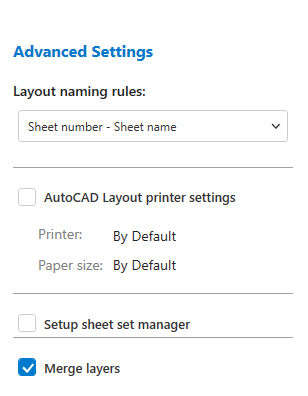
Click Advanced Settings » to open the flyout panel for detailed deliverable formatting:
a. Layout Naming Rules
- Sheet Number – Sheet Name: Formats layout tabs with full drawing metadata (e.g.,
A101 - Ground Floor Plan). - Only Sheet Number: Keeps tab names concise using only the drawing number (e.g.,
A101).
b. AutoCAD Layout Printer Settings
Automatically attaches page setups and plot configurations to every created layout tab in AutoCAD:
- Assigns default plotters (e.g., DWG to PDF.pc3 or physical office printers).
- Sets standard paper sizes (ISO A0, A1, A2, A3, ANSI, ARCH D/E) matching the original Revit Title Block dimensions.
c. Setup Sheet Set Manager (.dst)
Enable this checkbox to automatically generate an AutoCAD Sheet Set Manager file (.dst). When you open the master drawing in AutoCAD, all sheets are already linked in the Sheet Set Manager palette, ready for one-click batch publishing or archiving.
d. Layer Merging & Audit
Cleans up layer tables by stripping special character prefixes and merging duplicate layers, resulting in smaller DWG file sizes and pristine CAD drawings.
6. Execution & Real-Time Multi-Threaded Progress
Once your options are configured, click OK to initiate export:
- A non-blocking, multi-threaded progress bar provides continuous real-time feedback (sheet validation, individual DWG export, background AutoCAD layout compilation).
- Intermediate files are automatically cleaned up, leaving only your clean, finalized master DWG file.
- The plugin automatically opens the finished DWG in AutoCAD or reveals the output directory in Windows File Explorer upon completion.
C. Video Demonstration
Watch the full end-to-end export workflow in action below:
D. Key Benefits & Related Workflows
- ⚡ Save Hours on Every Submission: Eliminate 100% of manual layout creation and viewport copying in AutoCAD.
- 📐 Exact Viewport Scale & Position: Maintains true Revit view scales and title block positions without distortion.
- 📁 AutoCAD Sheet Set Integration: Native
.dstgeneration turns your DWG package into a production-ready CAD set instantly. - 🔄 Companion AutoCAD Tools Included: Switch to the MLabs tab inside AutoCAD for extra utilities like Batch Merge, Raster to OLE, Colorize Tabs, and Batch Print.
Explore More Revit-to-AutoCAD Tutorials: