

 ALL PLUGINS
 CONTACT
Managing complex multi-drawing AutoCAD packages often involves labor-intensive manual tasks: combining dozens of individual DWG files into a cohesive drawing set, converting paper space layouts to model space with accurate scaling, fixing broken raster image links, and batch plotting. The MLabs AutoCAD Productivity Suite (Premium Merge DWG) provides a comprehensive set of automated tools designed to eliminate these bottlenecks.
Whether you are consolidating external consultant files, preparing final project deliverables for clients, or working seamlessly with drawings exported from our Export Revit Sheets to DWG plugin, this guide explores every feature and command included in the suite.
1. Overview & Ribbon Interface
1.1. Where to Find it: The MLabs Ribbon Tab
Upon launching Autodesk AutoCAD, the plugin loads automatically and adds a dedicated MLabs tab to the AutoCAD ribbon. The ribbon organizes all capabilities into five functional panels:

- Merge: Core batch merging engines for combining separate DWG drawings and converting Layouts into Model Space.
- Utilities: Productivity accelerators including Viewport Lock/Unlock, Viewport Shift, Style Conversion, and Tab Color coding.
- Raster to OLE: Image embedding engine that detaches external raster Xrefs and converts them into embedded OLE objects.
- Print: Rapid Sheet Set Manager (.dst) generation and block-based Batch Plotting.
- About: Unified License management, LemonSqueezy activation, and multilingual interface selector.
1.2. Interactive Tooltips & F1 Context Help
Hovering your mouse over any button surfaces an informative tooltip explaining command parameters. Pressing F1 while hovering over any MLabs tool immediately opens this comprehensive documentation, providing offline and online context support directly inside AutoCAD.
2. Merge Panel: Batch DWG & Layout Conversion
2.1. “Merge Drawings” Command (MSMERGE)
The Merge Drawings command (MSMERGE) enables you to combine dozens of external DWG files into the active drawing without having to open, copy, and paste each file manually.
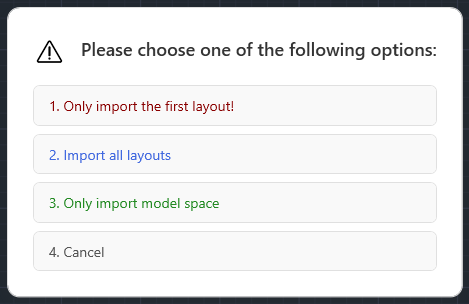
When you click Merge Drawings, you are prompted with three distinct merge modes:
- Only import the first layout: Extracts only the primary layout tab (Layout 1) from each source file. Ideal when each DWG file represents an individual sheet with auxiliary unused layouts.
- Import all layouts: Imports every single layout tab across all selected DWG drawings into the host file. The engine automatically handles duplicate layout naming collisions by numbering them sequentially.
- Only import model space: Extracts all Model Space entities from selected DWG files and inserts them into your active Model Space at your chosen coordinate point.
Batch Merging Workflow:
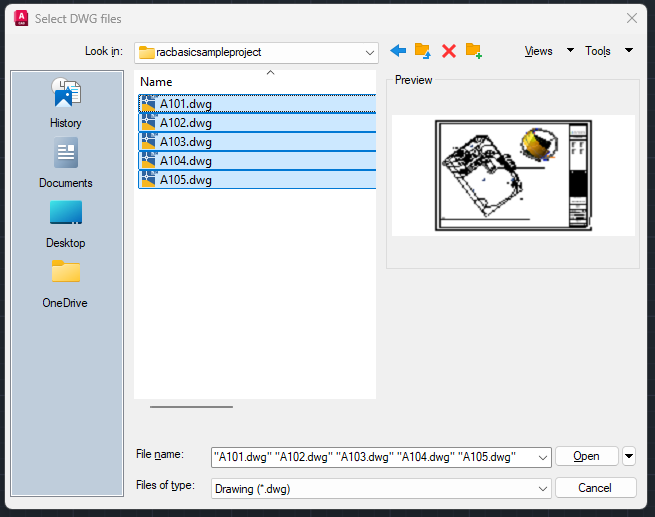
Step a: Select Source Files: A file browser opens allowing multi-selection of all DWG files you wish to merge.
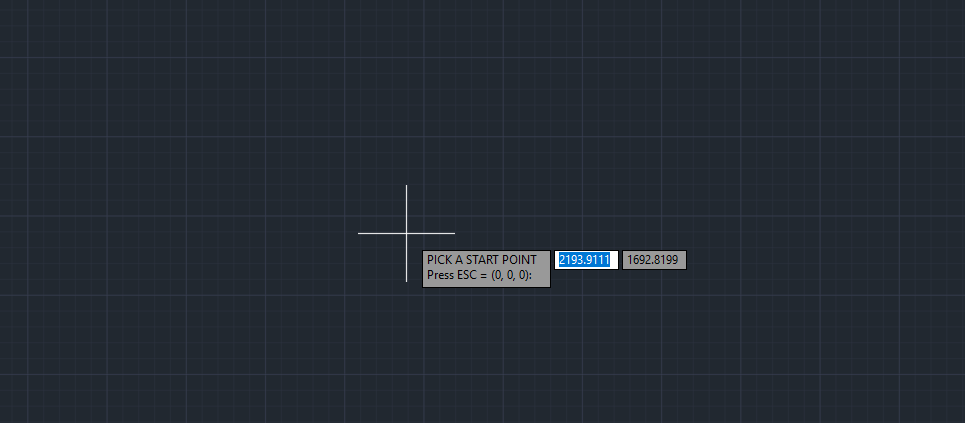
Step b: Pick Insertion Point: Click in AutoCAD Model Space to designate the insertion origin, or press ESC to insert at the default origin (0,0,0).
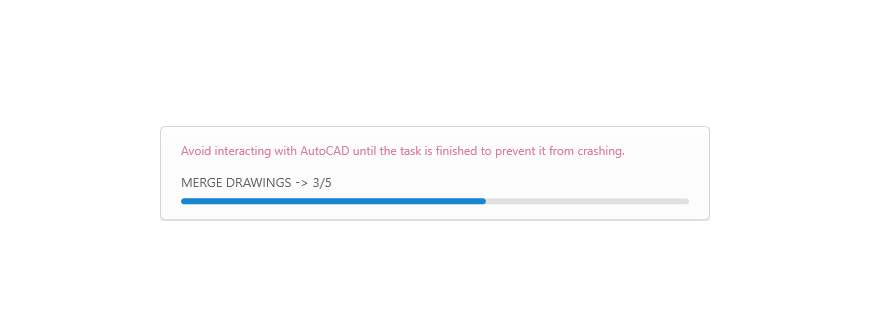
Step c: Background Multi-Threaded Execution: A progress window tracks file reading, entity transformation, duplicate layer merging, and database audits in real time without freezing the AutoCAD interface.
$0$ Xref prefixes), and validates layout viewports.
2.2. “Layouts to Model” Command (MsExportLayouts)
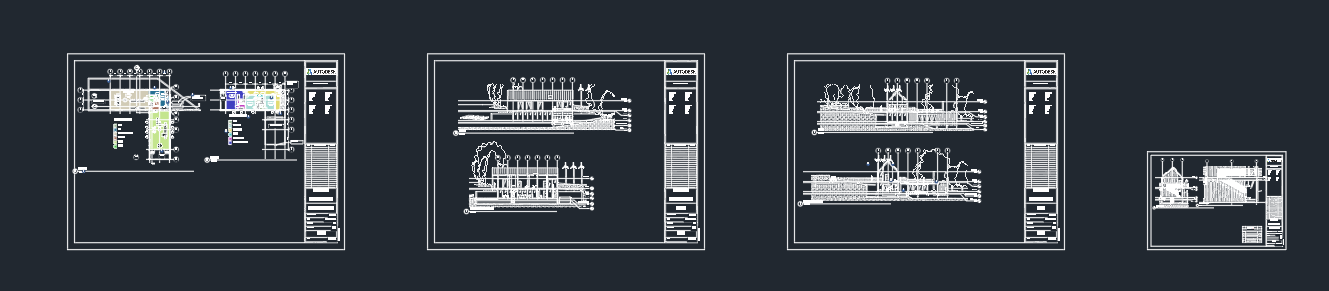
Many contractors and site teams require all drawings inside AutoCAD Model Space rather than spread across paper space layouts. The Layouts to Model command (MsExportLayouts) converts every layout tab into Model Space, positions them side-by-side, and writes the consolidated output into a clean new DWG file.
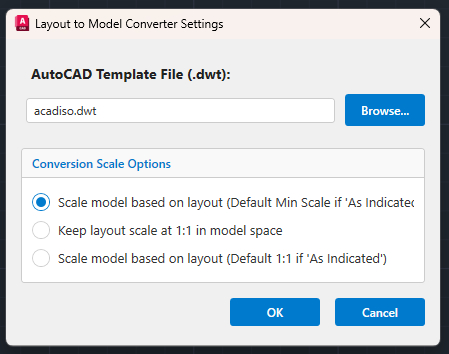
a. Base AutoCAD Template (.dwt)
Specify your host drawing template. By default, the plugin loads standard acadiso.dwt (Metric) or acad.dwt (Imperial). Click Browse… to load your firm’s custom template with predefined dimension and text styles.
b. Conversion Scale Options
Re-scales viewport entities according to their original scale (e.g., 1:50 viewport scaled up 50x). When you measure walls or columns in the resulting Model Space using the AutoCAD DIST command, the dimension reads 1:1 true real-world size. If a sheet contains viewports with different scales, the plugin automatically scales based on the minimum (finest) viewport scale to protect dimensional integrity.
Objects are placed into Model Space matching their exact printed sheet coordinates (e.g., an A1 title block measures 841 × 594 mm). Ideal when clients request an identical replica of plotted paper sheets inside Model Space.
3. Utilities Panel: ToolBox, Convert Style & Tab Colors
3.1. AutoCAD ToolBox (MSTOOLBOX)
Clicking ToolBox (MSTOOLBOX) opens a quick-action utility console packed with essential CAD drafting helpers:
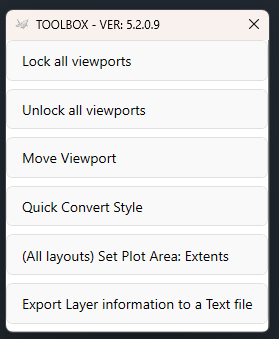
- 🔒 Lock all viewports: Locks every viewport across all layout tabs in one click, preventing accidental zooming or panning while annotating in Paper Space.
- 🔓 Unlock all viewports: Instantly unlocks all viewports when sheet adjustments are needed.
- 📐 Move Viewport: Allows you to shift or pan the view inside a viewport precisely by picking two points in model space, without moving the viewport frame on the paper.
- 🎯 Quick Convert Style: Standardizes layer and entity properties only for currently selected drawing objects.
- 🖨️ (All layouts) Set Plot Area: Extents: Automatically sets the plot area to Extents for all layout tabs in the active drawing.
- 📋 Export Layer info to a Text file: Extracts complete layer metadata (layer names, RGB colors, linetypes, lineweights, freeze/plot states) into a clean
.txtfile for CAD compliance audits. - 🧱 Change objects in Reference Block to Layer 0: A lifesaver CAD utility that modifies nested entities inside block definitions to Layer 0. This guarantees that block instances dynamically inherit layer colors, linetypes, and lineweights (
ByLayer) when inserted across different layers.
3.2. “Convert Style” Command (MsConvertFeature)
When receiving drawings from external consultants, CAD entities often have overridden colors, non-standard text fonts, and mismatched dimension styles. The Convert Style command (MsConvertFeature) unifies your entire drawing into corporate standard formatting in seconds:
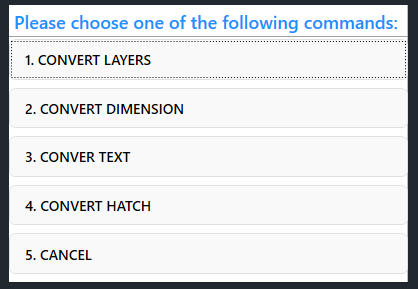
- 1. Convert Layers: Resets entity color, linetype, and lineweight overrides to
ByLayeracross the active drawing. - 2. Convert Dimension: Standardizes all linear, aligned, and angular dimensions to match your project dimension style.
- 3. Convert Text: Normalizes text entities and MText styles to standard office typography.
- 4. Convert Hatch: Harmonizes hatch patterns, scale factors, and layer assignments.
3.3. “Tab Colors” Command
Working with 15–20 drawings open simultaneously in AutoCAD often leads to editing errors. The Tab Colors tool organizes your workspace by dynamically color-coding AutoCAD drawing tabs:
- Color Tabs By Project Title: Automatically detects project name prefixes and groups related drawings under identical tab colors.
- Color Menu Tab Panels: Highlights active ribbon panels.
- Customizable Palettes: Choose from elegant pastel or vibrant rainbow color palettes.
4. Raster to OLE Panel: Eliminate Broken Image Links
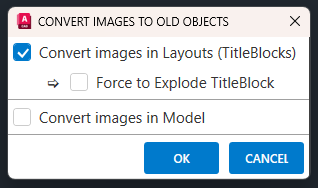
The Raster to OLE panel solves this permanently by converting external raster image attachments into embedded OLE objects directly inside the DWG database binary:
4.1. Global Raster (MSRasterToOle)
Batch scans the entire drawing—including Model Space, all Layout tabs, and nested raster images inside Block references. It converts all images into embedded OLE objects and cleanly detaches the original image definitions from the Image Manager. The DWG becomes 100% self-contained with zero external dependencies!
4.2. Single Raster (MSSingleRasterToOle)
Allows you to interactively pick an individual image on screen (such as an approval stamp or signature) and embed it as an OLE object immediately.
5. Print Panel: Sheet Set Manager & Batch Print
5.1. Create Sheet Set Manager (MSCreateSSM)
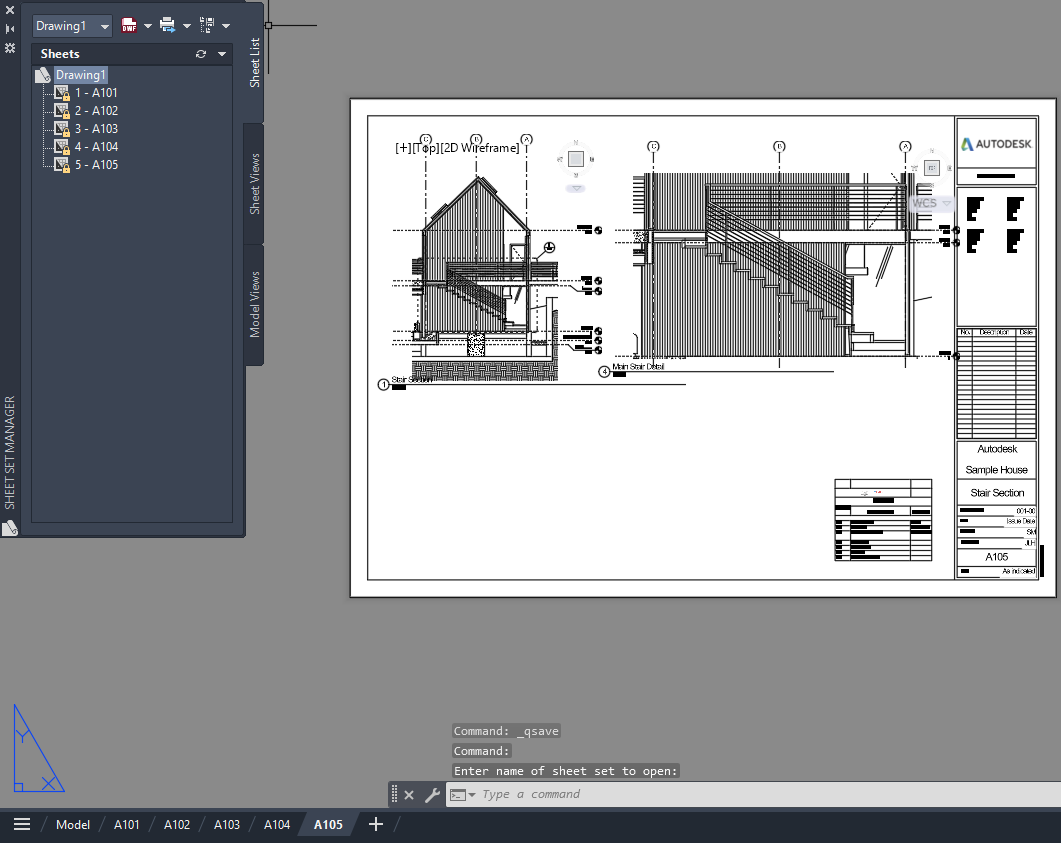
Creating an AutoCAD Sheet Set (.dst) manually through AutoCAD’s native wizard requires multiple tedious dialog steps. The Create SSM command (MSCreateSSM) scans all active layout tabs and instantly creates an associated .dst Sheet Set in your drawing folder.
5.2. Batch Print in Model Space (MSBatchPrint)
After merging multiple drawings or exporting layouts to Model Space, plotting each drawing boundary individually takes hours. The Batch Print command (MSBatchPrint) automates plotting multiple drawings directly from Model Space or Layouts:
- Flexible Plot Settings: Choose between an existing Page Setup stored in the DWG or configure custom plot settings (Printer/Plotter device
.pc3, Paper Size, Plot Style table.ctb/.stb, and Orientation). - Two Boundary Detection Modes:
- Select Block Reference: Automatically detects Title Block block references or X-Refs across the drawing.
- Rectangle Frame: Automatically plots all rectangular polylines placed on the dedicated
BATCH_PRINT_FRAMElayer (includes an interactive Draw Boundary helper).
- Sequenced Print Order: Plot in logical sequence (Left-to-Right, Top-to-Bottom).
- Direct PDF Output: Exports clean, high-resolution single or multi-page PDF documents.
6. License Management & Activation
6.1. Unified Licensing (Revit + AutoCAD)
We believe in frictionless workflows. A single MLABS license key covers both the Autodesk Revit suite (Export Sheets to DWG) and the AutoCAD productivity suite (Batch Merge DWG Files). You do not need to buy separate licenses for Revit and AutoCAD!
6.2. 30-Day Unrestricted Free Trial
Install the plugin and immediately enjoy a 30-day unrestricted trial with full access to all features, including batch merging, layout export, and batch plotting. When you are ready to upgrade, enter your license key under MLabs > About > License.
Explore Related MLABS Revit & AutoCAD Solutions:
AutoCAD MLABS Plugin
Batch Merge & ProductivityEnglish, Vietnamese, Portuguese (Brazil), Spanish, French, Simplified Chinese, Traditional Chinese, Arabic, German, Italian, Japanese, Korean, Russian.