
 ALL PLUGINS
 CONTACT
1. MCP Server Integration
Seamlessly connect Autodesk Revit with modern AI assistants like Claude Desktop, Cursor, and Antigravity via the official Model Context Protocol (MCP) Named Pipe Server (RevitMcpPipe).
1.1. Quick Setup Guide
- Open MCP Server in Revit:
Launch Revit and open your project. Go to the MLabs tab on the Revit Ribbon. Click MCP Server in the MCP Server panel. - Enable the Server:
In the MLabs MCP Server Control Panel, switch the toggle to ON. The add-in automatically startsRevitMcpPipe, launchesRevitMcpServer.exe, and auto-generates JSON configurations for detected AI agents:- Claude Desktop:
%APPDATA%Claudeclaude_desktop_config.json - Cursor:
%USERPROFILE%.cursormcp.json - Antigravity:
%USERPROFILE%.geminiconfigmcp_config.json
- Claude Desktop:
- Verify Connection:
Confirm the UI status displays SERVER RUNNING (green).
Note: Restart running AI clients so they load the newly created configuration file. - Test the Integration:
In your AI agent chat, type “Ping Revit” or execute themlabs_ping/mlabs_helptools to confirm real-time bi-directional communication.
1.2. Disabling the Server
Toggle the switch to OFF in the control panel to stop RevitMcpServer.exe and release pipe endpoints cleanly.
2. Quick Dim Panel
Accelerate MEP shop drawing annotation with intelligent automated dimensioning and category-specific tagging for pipes, ducts, cable trays, conduits, and fabrication parts.
2.1. Gen Dims (Auto Dimension & Tagging)
Automatically generate dimension strings and category tags across selected elements. Select elements first (pre-selection) or run the command and pick elements individually.
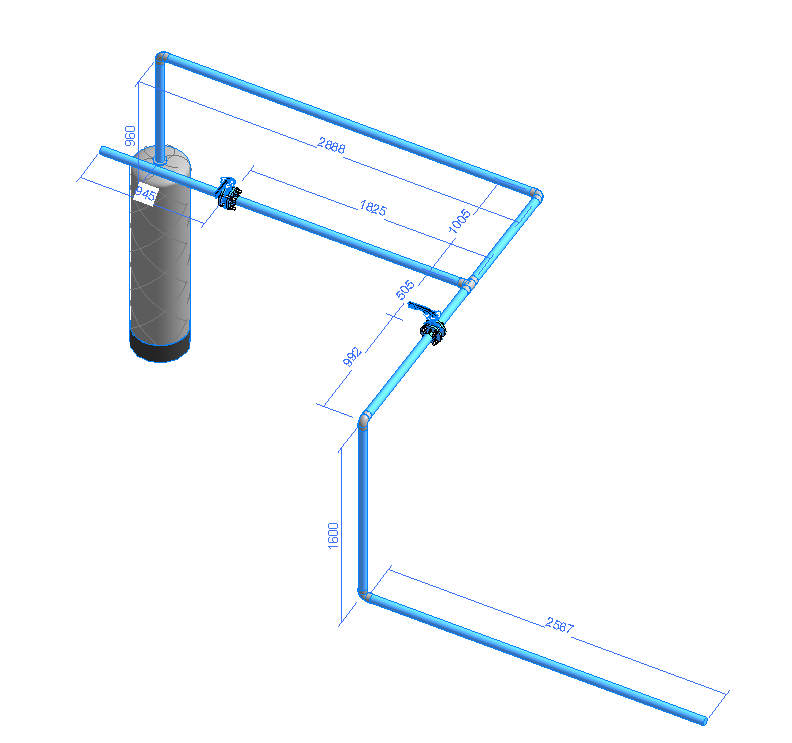
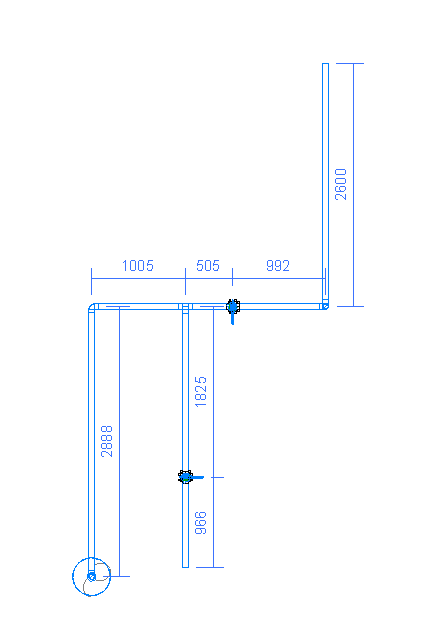
Works seamlessly across Floor Plans, Sections, and 3D Isometric Views with built-in anti-overlap intelligence.
2.2. Purifying (Batch Clean-up)
A specialized drafting cleanup utility. Selectively batch-delete dimensions, tags, model lines, or detail lines, and toggle the visibility of reference lines/planes in the active view or across the entire project in seconds.
2.3. Dimension Settings
Fine-tune dimension placements, offsets, reference lines, fitting inclusion, and auto-tagging families.
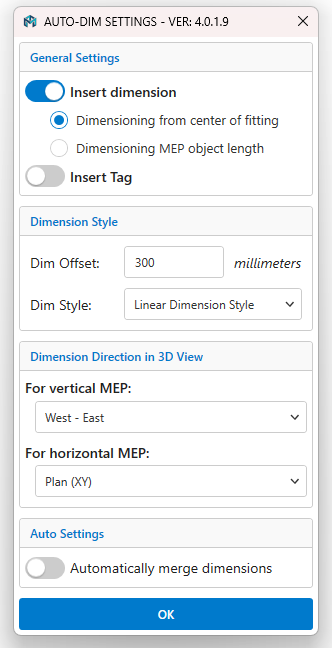
- Insert Dimensions: Choose between measuring to the geometric center of fittings or capturing exact linear cut lengths.
- Insert Tag: Automatically place annotations alongside dimensions with custom leader offsets.
- Dimension Style & Offsets: Pick active Revit Dimension Types and adjust standoff distances.
- 3D View Orientation: Lock dimension orientation planes when annotating inside 3D views.
3. Tags Panel
Clean up annotation layouts and keep drawing sheets strictly aligned and compliant with BIM drafting standards.
3.1. Align Vertical By Point
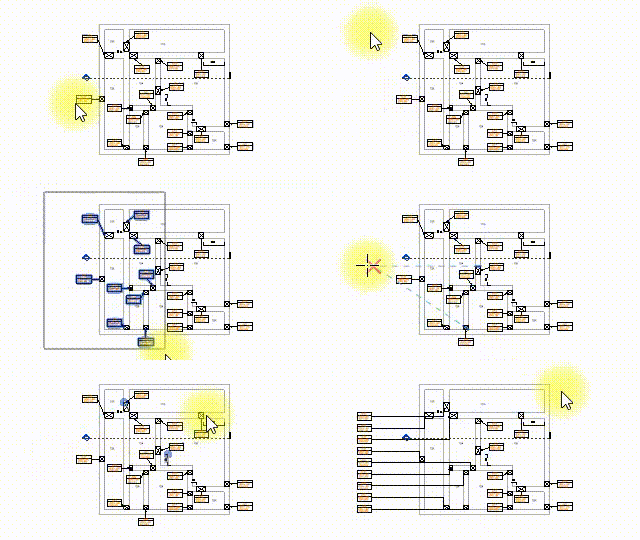
Align scattered tags along a vertical datum. Select multiple tags by crossing window or click, then pick a reference point; the tags snap into a neat vertical column with orderly leaders.
3.2. Align Horizontal By Point
Align tags horizontally along a common elevation or datum line while maintaining host associativity.
3.3. Perp. ⊥ (Perpendicular Tag Leaders)
Instantly snap tag leader elbows to form clean 90-degree right angles relative to the tagged MEP host element for crisp, professional drawings.
3.4. Tag Settings
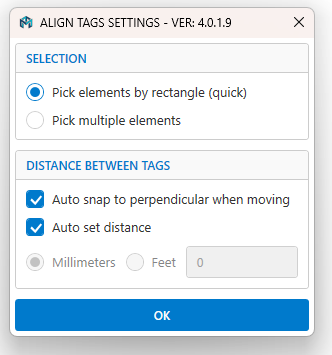
Configure default selection preferences (window rectangle vs. click-and-finish) and set uniform spacing intervals between adjacent tags.
4. MEP Family Panel
Manage, place, orient, and support Revit families with high-productivity browser and array tools.
4.1. Family Browser
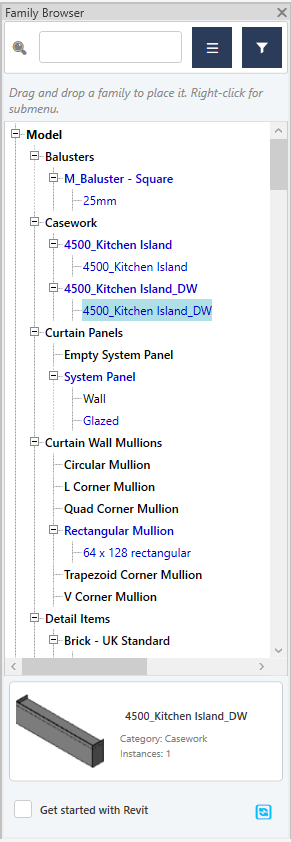
The Family Browser button provides access to two specialized dockable browsers:
- Folder Browser: Browse, preview, and drag & drop Revit family files (
.rfa) directly from your local hard drive or corporate network shared folders without pre-loading them into the project. - Internal Family Browser: Search, inspect, batch-rename inner family types, or delete loaded families in the active document.
4.2. CAD Block To Family
4.3. Flip Rotation
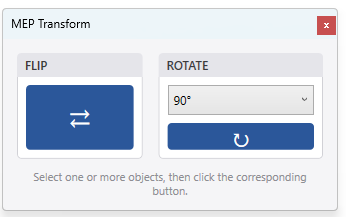
Quickly rotate selected families by a custom specified degree or flip them 180 degrees with a persistent floating modeless panel for continuous clicking.
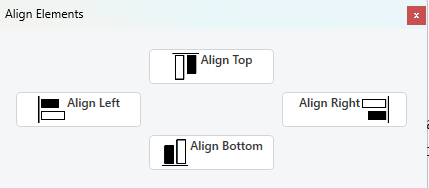
4.4. Smart Alignment (3D Bounding Box)
Select multiple fittings, equipment, or accessories to align them along Left, Right, Top, Bottom, Center, or Elevation planes based on their 3D bounding geometry.
4.5. Hangers & Supports
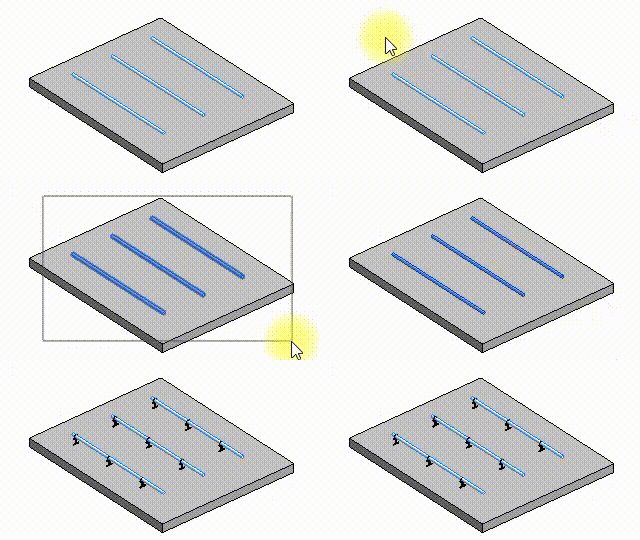
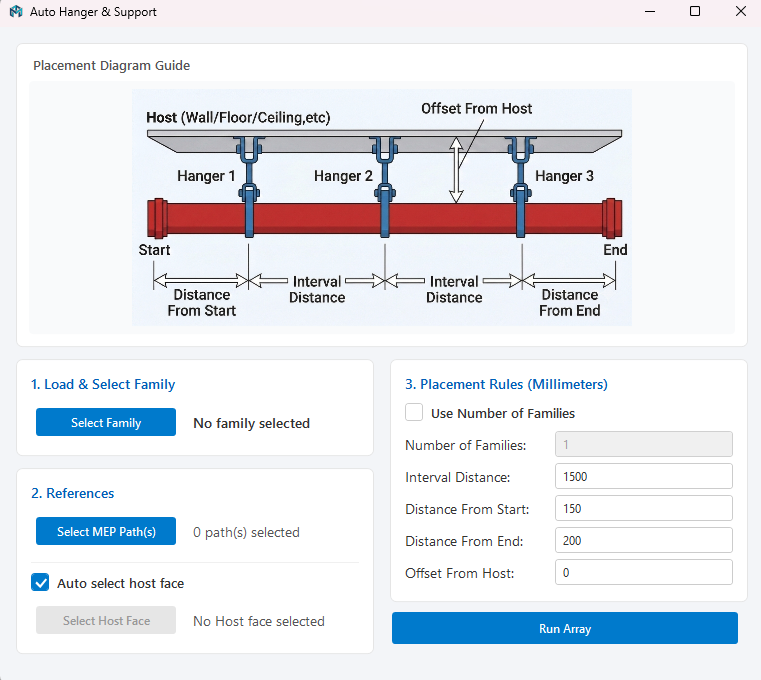
Automatically distribute and array level-based or face-based hangers along selected pipes, ducts, cable trays, or conduits.
Configure start and end offset margins, specify distribution intervals, and anchor hanger rods directly to overhead floor slabs or structural ceilings.
5. MEP Routing
Intelligent 3D auto-routing algorithms that connect open ports, faces, and branch lines with full fitting resolution.
5.1. To Connector
Connect two open MEP ports in 3D space with a single click. Select two open connectors on pipes or ducts; the engine computes an orthogonal 3D path with required elbows.

5.2. To Point
Route from an open connector to any clicked surface coordinate on a wall, floor, or ceiling (including linked models).
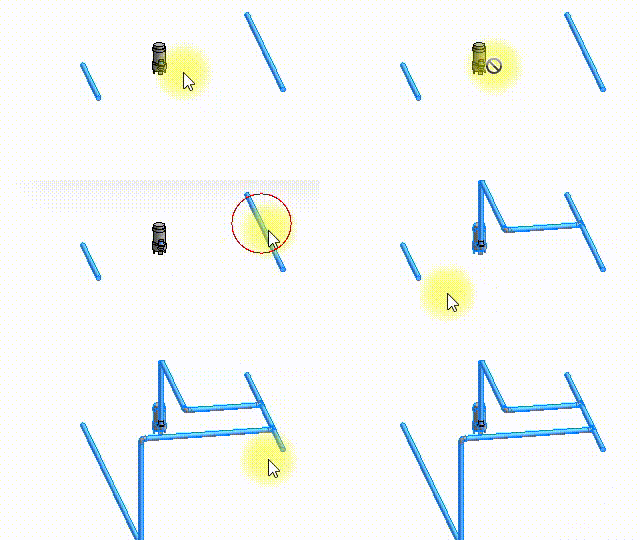
5.3. Branch Connect (Tee, Wye, Tap)
Connect an open connector to a main line using three specialized routing tools:
- Branch Tee: Generates an orthogonal branch connecting into the main run with a 90° Tee fitting.
- Branch Wye: Routes an orthogonal branch entering the main line at a smooth 45° angle with a Wye fitting (ideal for drainage, waste, and vent plumbing).
- Branch Tap: Connects directly to the main duct/pipe surface with a Takeoff/Tap fitting without severing the main run geometry.
5.4. Random Cycle
Quickly rotate through alternative mathematical routing trajectories if the initial auto-routed path does not match your spatial preference.
6. MEP Tools
6.1. Align MEP & Rotate
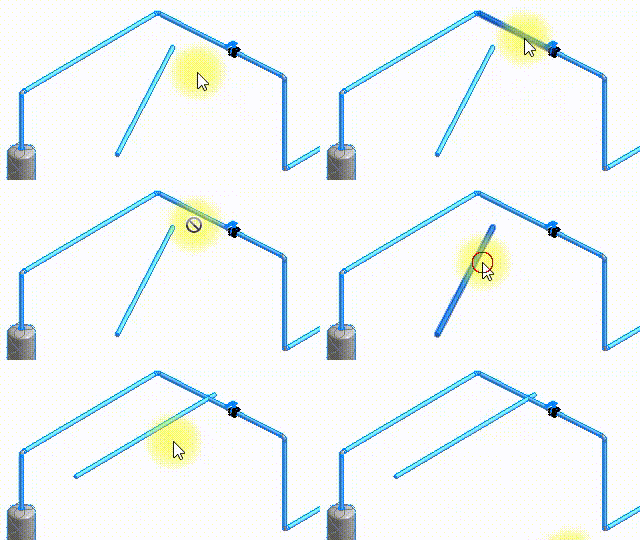
Select a straight main run and a branch element. The branch rotates, matches slope, and translates until centerlines intersect perpendicularly in 3D space.
6.2. Align MEP (Normal Translation)
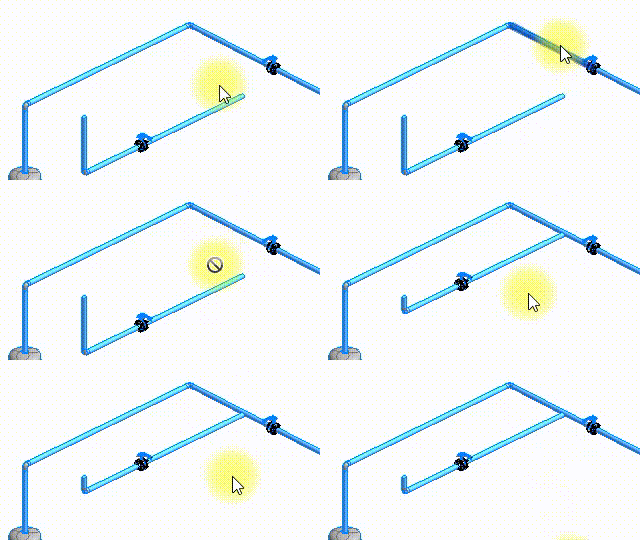
Translate a branch element along the shortest normal vector path to intersect a main run without altering its angle, rotation, or slope.
6.3. Move And Connect
Pick a fixed target element, then pick the element you want to move; the tool automatically rotates and translates the second element so closest open connectors connect directly.

6.4. Bloom (Port Extensions)
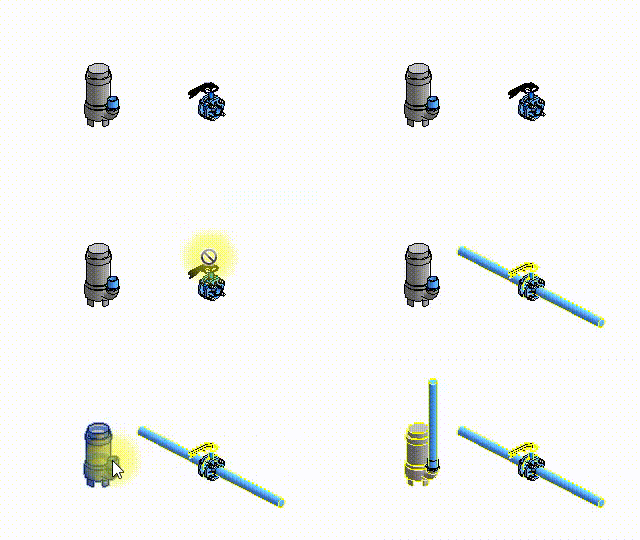
Automatically create pipe or duct stub extensions radiating outwards from all open connectors on equipment or fittings in continuous picking mode.
7. MEP Fittings
A dedicated suite of quick-fitting generators to speed up manual drafting of elbows, tees, taps, and transitions.
7.1. Directional Elbows (Up/Down)
- 90 Up / 90 Down: Instant 90° vertical rise or drop elbow.
- 45 Up / 45 Down: Instant 45° vertical rise or drop elbow.
7.2. 90° To 45° Elbow Conversion
Click on any standard 90-degree pipe elbow to convert it into two 45-degree elbows with an automatically calculated gap based on pipe diameter and material standards.
7.3. Tap Connect
Connect branch pipes or ducts directly into the side of a main run with a tap fitting, even if the branch and main are skewed or offset from the centerline.
7.4. Gen Tee / Wye
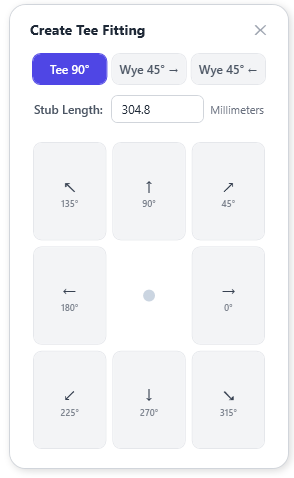
Pick a point on a straight pipe or duct to split it and insert a Tee or Wye fitting with configurable direction, fitting family, and branch stub length.
7.5. Gen Reducer
Pick two points on a straight Pipe or Round Duct to configure sizes and insert a reducer/transition fitting at the first point, midpoint, or second point.
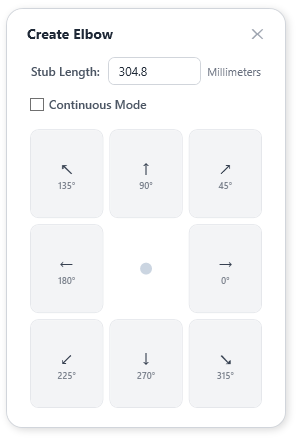
7.6. Elbow Compass (Custom Angles & Stubs)
Pick a connector position on any MEP curve to open a directional compass dialog, choose 90° or 45°, and define stub extension lengths.
8. MEP Clash
8.1. Clash & Wall/Floor Sleeves
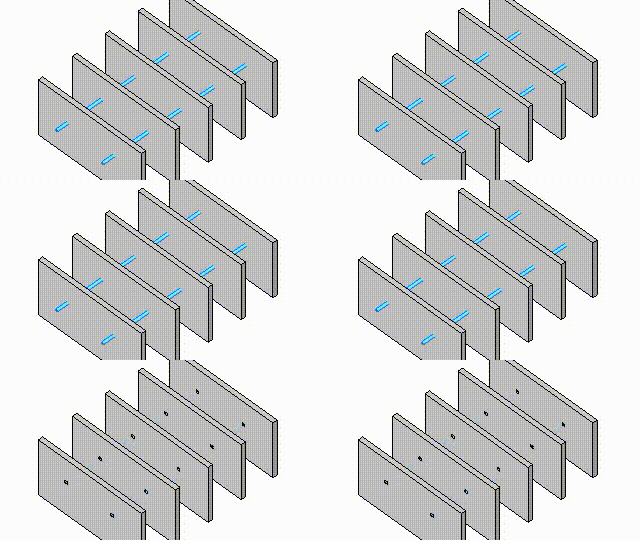
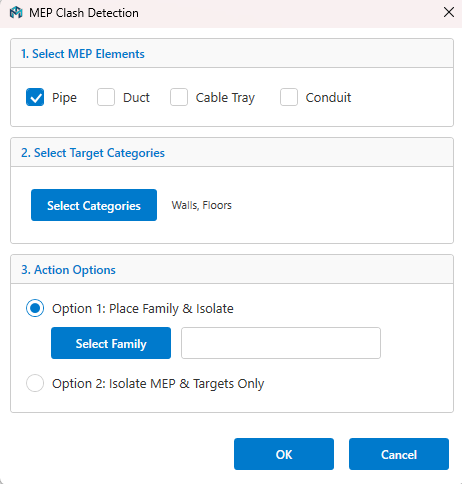
Detect interference issues between MEP systems and target structural categories (including linked models). Automatically generate wall/floor penetration sleeves and isolate clashed elements for review.
8.2. Clash Solver (Bypass Loops)
Solve clashes automatically by adding 45° or 90° bypass offset loops around obstacle elements with configurable safety clearances.
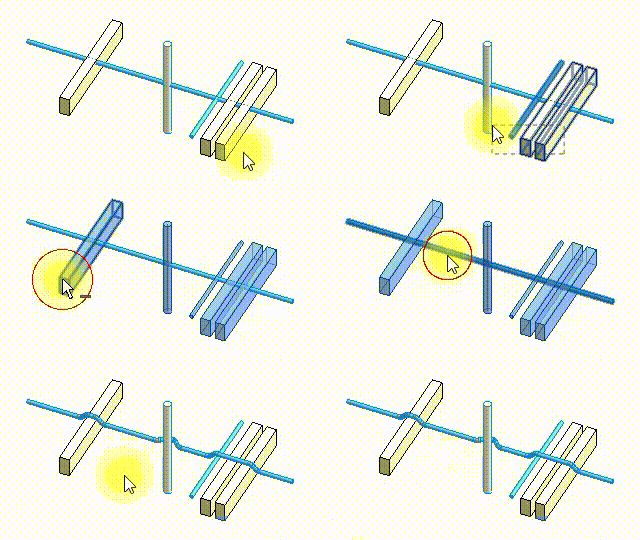
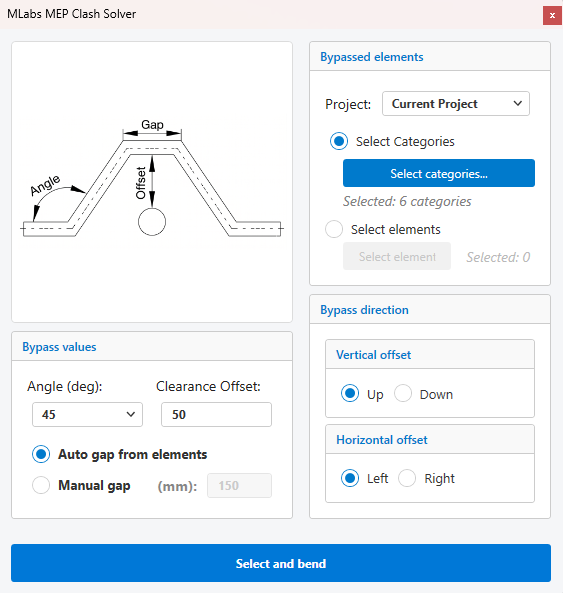
Offset = (Obstacle Outer Boundary - Pipe Centerline) + Pipe Outer Radius + Clearance Offset
9. MEP System
9.1. Assign System
Select any pipe or duct to view all available Piping and Mechanical system types in the project and quickly reassign its system classification.
9.2. Delete System
Wipe the system instance from selected elements without deleting the physical pipes, ducts, or fittings.
9.3. Disconnect
Select two connected components to safely disconnect their touching connectors, leaving them unjoined without moving them.
10. MEP Plus
10.1. Break Segment
Click two points along a straight pipe or duct to delete the middle segment and divide the element into two independent runs.
10.2. Split with Unions
Batch-split straight runs of pipes, ducts, conduits, or cable trays at specified interval lengths with automatic Union fittings at split points.
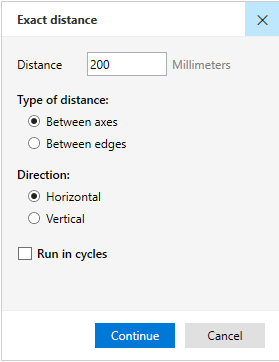
10.3. Set Distance
Position parallel MEP curves at exact dimensions (center-to-center or edge-to-edge horizontally or vertically).
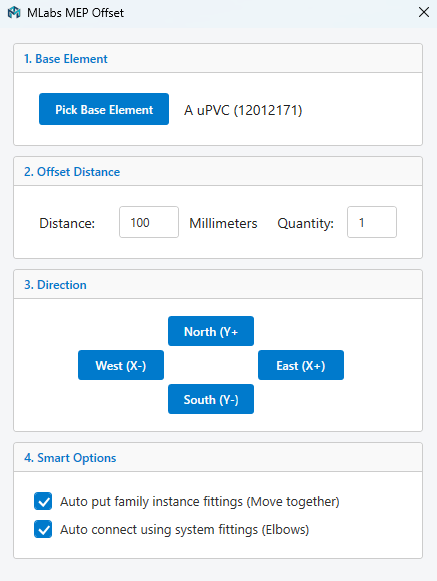
10.4. MEP Offset
Offset selected MEP elements by a specified distance and direction, with options to create parallel copies or move existing elements.
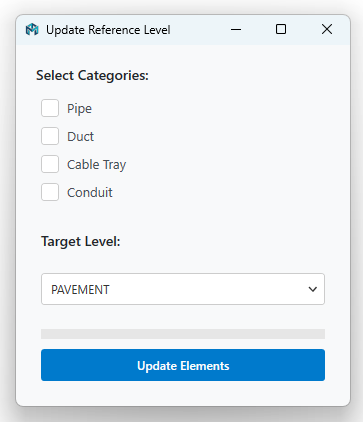
10.5. Ref Level
Batch-update reference levels for selected pipes, ducts, cable trays, and conduits without modifying their physical elevations in space.
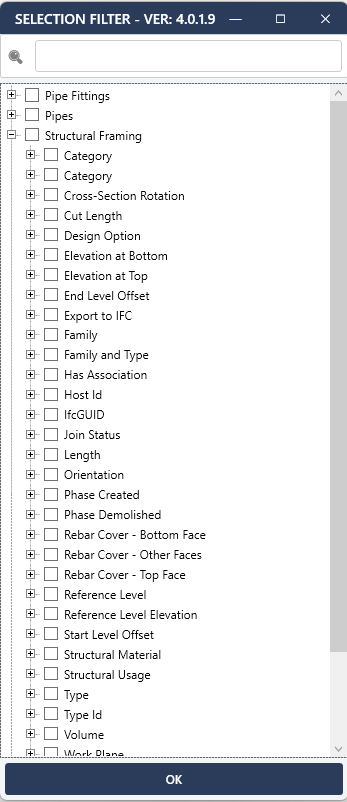
10.6. Selection Filter
Dynamically filter selected elements in a hierarchical tree view grouped by Category, parameters, and shared values.
11. About & Licensing
11.1. MLabs Pass
Open the integrated License Manager window to view product info, check subscription validity, activate machine licenses, or deactivate devices.
11.2. Help & Support
Click Help on the ribbon to access user documentation, video tutorials, and technical support directly on the MLabs Solution website.
Revit MEP Suite
An all-in-one productivity plugin for Autodesk Revit, built to streamline modeling, annotations, fittings, clash detection, and routing for MEP engineers.
Custom Installer Autodesk Marketplace