

 ALL PLUGINS
 CONTACT
How to Reactivate Your Lemon Squeezy License
Complete step-by-step instructions for reactivating your MLabs Revit plugin license when moving to a new computer or after reinstalling your operating system.
This guide is specifically intended for customers who activate their MLabs plugins using a Lemon Squeezy license key.
Reactivating a license is commonly required when you:
- Switch or upgrade your computer: Moving your daily Revit workflow to a new workstation or laptop.
- Reinstall your operating system: Formatting your drive, resetting Windows, or performing a clean system reinstallation.
- Upgrade core computer hardware: Hardware modifications that generate a new machine signature.
Because single-user licenses are limited to a set number of active devices (typically 1 seat), Lemon Squeezy requires you to deactivate the previous machine instance before your key can be reactivated on the new machine.
Access Your Orders on Lemon Squeezy
You can quickly manage your license without needing to remember a password by logging into the Lemon Squeezy customer portal:
- Click the button below or open https://app.lemonsqueezy.com/my-orders in your browser.
- Enter the email address you used when placing your original purchase on MLabs.
- Click “Send login link”. Lemon Squeezy will immediately send a secure magic login link to your inbox.
- Check your email inbox, open the email from Lemon Squeezy, and click the magic link to log straight into your order dashboard.
Deactivate the Previous Machine Instance
Once you are inside your Lemon Squeezy Customer Portal, release the seat currently tied to your previous machine:
- Click on the “Licenses” tab from the top navigation bar.
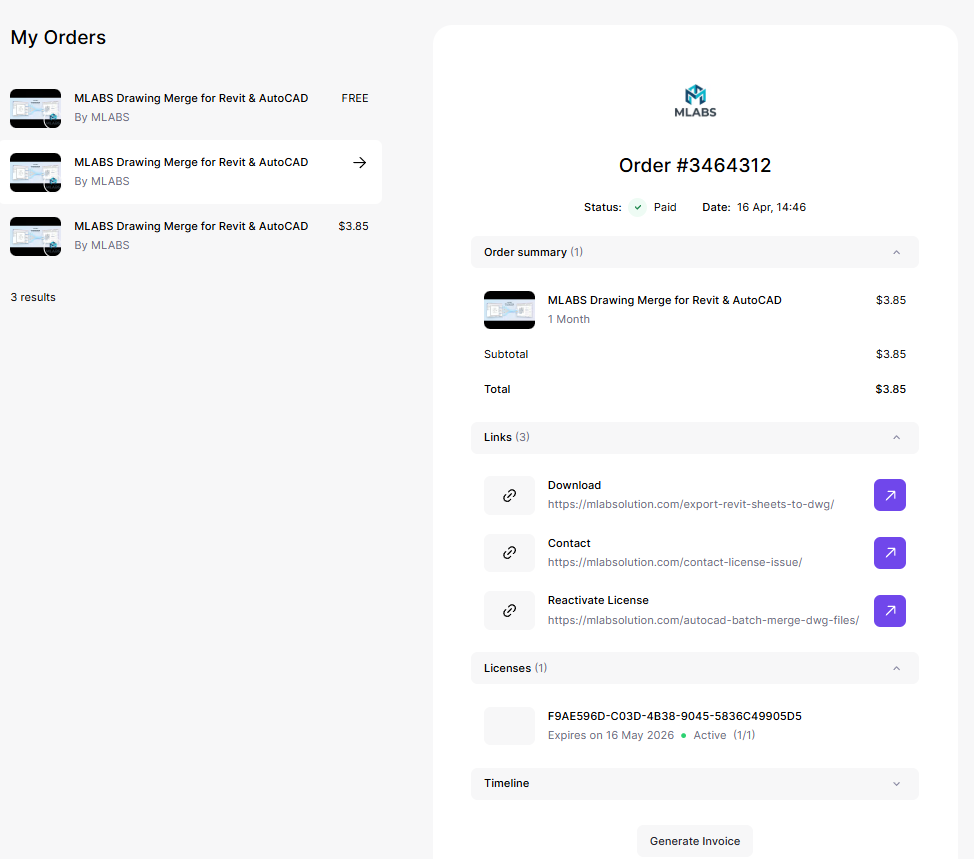
- In the license list, locate your product and click directly on the license key string to open the “License Details” window.
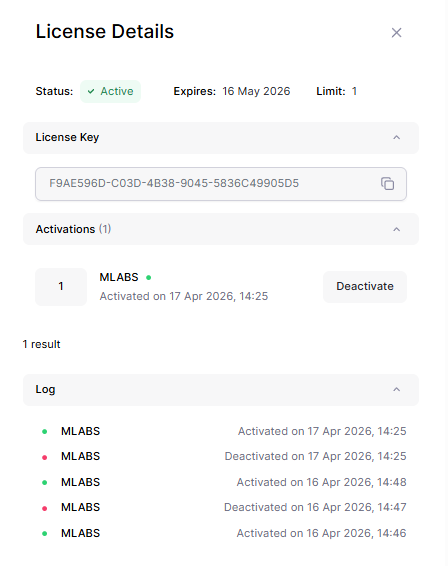
- Review your activation status (e.g., 1/1 activations used) and identify the previous computer name in the instance list.
- Click the red “Deactivate” button next to the old machine instance.
- Lemon Squeezy will immediately revoke that machine activation and decrement your active seat count, making the license available for your new machine.
- Copy your license key: Click the copy icon next to your license key string so you have it ready on your clipboard for the next step.
Reactivate the Plugin in Revit
With your license seat freed up, you are ready to activate the plugin on your new or reinstalled system:
- Open Autodesk Revit on your target computer. Ensure you have installed the latest version of your MLabs plugin.
- On the Revit top ribbon, navigate to the MLabs tab and click the “License” button. The License Manager dialog will appear.
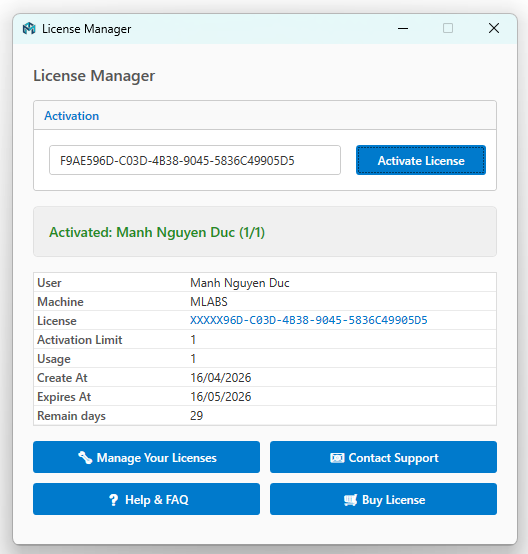
- Paste your Lemon Squeezy license key into the input field.
- Click the “Activate” button. The plugin will verify your key with the Lemon Squeezy server.
- A success message will confirm that your license is now active, immediately unlocking all features.
Frequently Asked Questions & Troubleshooting
Why do I see the error “License key has reached its activation limit”?
This message indicates that your license is still registered to your old computer or prior Windows installation. Follow Step 1 and Step 2 above to deactivate the old instance in Lemon Squeezy. Once the seat is released, try activating again in Revit.
Can I deactivate my license if my old computer crashed or is no longer accessible?
Yes! Because Lemon Squeezy manages licenses in the cloud, you do not need physical access to your previous machine. You can visit https://app.lemonsqueezy.com/my-orders from any computer, phone, or browser to deactivate the old instance.
What should I do if I changed my email address or cannot access my orders?
If you no longer have access to the email address used during purchase, please contact us through our License Support Page. Provide your order number, invoice details, or purchase receipt so our team can help update your account.
Need Additional Help with Your License?
Our support team is here to help resolve any activation issues or licensing inquiries quickly.
Contact Priority License Support