

 All Plugins
 Revit ⇆ DWG
 Revit ⇆ Excel
 Contact
1. Basic Features
Basic features for exporting Revit schedules to Excel and importing Excel data into Revit. These features do not modify existing parameter values.
If you need to synchronize data between Revit and Excel and update parameter values, please take a look at the “Schedule Link” feature.
1.1. To Excel
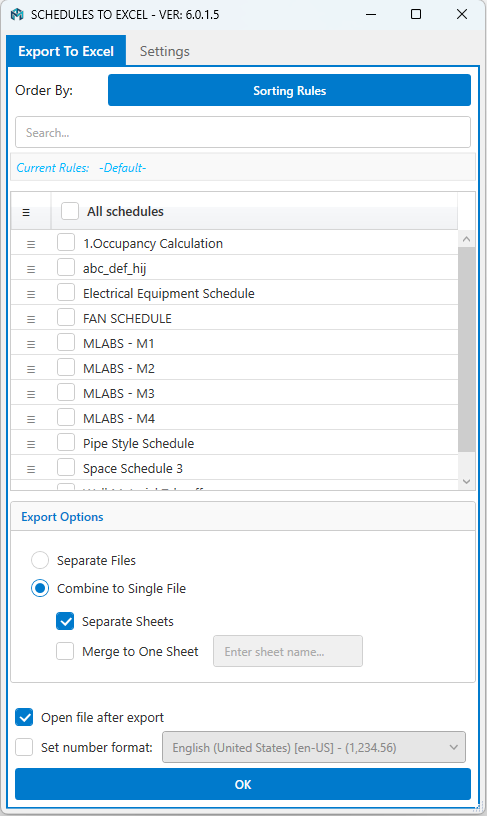
a. Export To Excel Tab
- Order By: Sorts your schedules using specific parameters. Since the plugin doesn’t exactly match Revit’s built-in sorting right away, we use custom Sorting Rules to get things organized.
- Sorting Rules Button: Supports up to six levels of nested sorting.
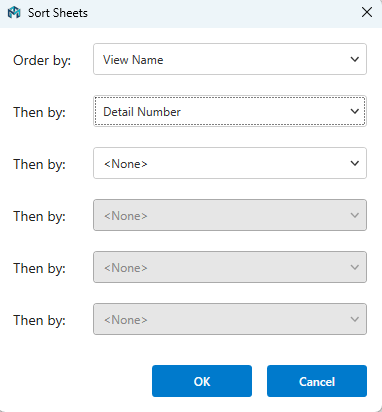
The plugin sorts things based on your first parameter. If a few schedules have the exact same value, it moves on to the second parameter to break the tie, and it keeps doing this for up to six levels!
Note: Right now, it only supports Ascending Order — so that means A to Z, and lowest to highest numbers.
- Schedule List: Shows all your available schedules in a handy list. The order here is pretty important because it sets the order of the sheets in your exported Excel file. Just drag and drop the rows to set them up exactly how you want.
- Export Options:
- Separate Files: Saves each schedule into its very own Excel file.
- Combine to Single File:
- Separate Sheets: Combines all your Revit schedules into one Excel workbook, giving each schedule its own separate tab.
- Merge to One Sheet: Puts all the data from your selected schedules onto one giant master sheet.
- Open File After Export: Automatically opens up Excel so you can check out your file the second it’s done.
- Set Number Format: Automatically formats numbers based on your region’s settings. If you leave this unchecked, your numbers will just show up as plain text.
b. Setting Tab
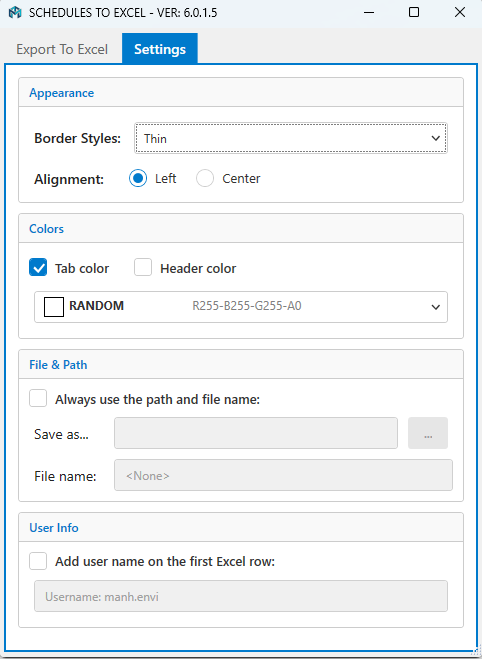
- Appearance: Pick your favorite cell border styles in Excel and tweak how your text lines up.
- Colors: Change up the tab colors in your Excel sheet and pick a cool background color for your table headers using the dropdown menu.
- File & Path: Checking “Always use the path and file name” makes sure your files always save to the same folder with a standard name. This is perfect if you want to keep your workflow automated and smooth.
- User Info: Automatically pops the username of the person doing the export right into the first row of the sheet.
1.2. TableGen
This handy feature lets you smoothly bring your Excel spreadsheets back into Revit while keeping all your original text formatting and setups exactly as they were.
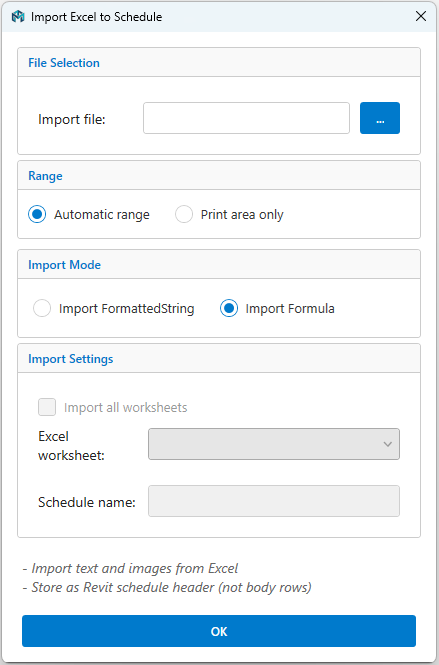
- File Selection: Browse your computer and pick the Excel spreadsheet you want to use.
- Range: Pick Automatic Range to let the plugin find where your text ends, or go with Print Area Only if you just want to import the specific print area you set up beforehand.
- Import Mode: Choose whether you want to pull in the final formatted text or the raw formulas straight into Revit.
- Import All Worksheets: Imports all your worksheets at the same time. If a schedule in your active Revit model has the exact same name, the system will automatically overwrite it.
- Schedule Name: Lets you set up your own custom names for any new schedules created in Revit.
2. Excel ⇆ Schedule
This feature allows you to modify Revit data through Excel. Please be careful when making changes and always review your data afterward to ensure everything is correct.
2.1. Schedule Link (Box)
*Note: Whenever we say “Box”, we’re just talking about the main floating menu window.
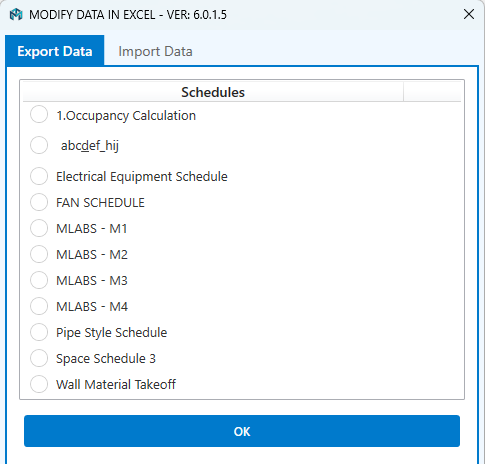
Pick a schedule to export. Your new Excel file will use a handy color-coded format to keep things organized. Here’s what the colors mean:
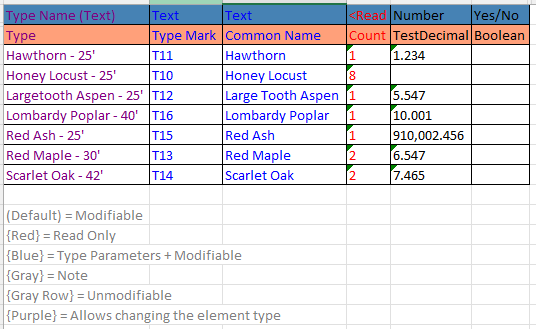
- Black Text (Default): These are Instance Parameters that you can freely edit.
- Red Text: Read-only info (you can’t change these).
- Blue Text: Type Parameters that you can adjust.
- Gray Text: Helpful system notes to explain what’s going on.
- Gray Highlighted Row: Watch out for these! It means a row didn’t sync right or the data is locked. Usually, it’s just a random error where the plugin couldn’t grab the right Revit Element ID.
- Purple Text: Type Names. If you type in a name that already exists, it links to that one. If you type a brand new name, it actually creates a completely new type right inside Revit for you!
For Yes/No fields (Boolean parameters), just type “Yes” or “No” straight into the spreadsheet. If you’re using a non-English version of Revit, make sure to use the translated words that match your column headers.
If you leave a cell totally blank, it’ll reset or clear out that data back in Revit (where allowed).
Once you’re happy with your Excel edits and saved them, jump over to the Import tab in the main ScheduleLink (Box) window. Load up your saved sheet to push everything back into your Revit project.
Pro Tip: You can always save your old Excel files to re-import them later! Sometimes, after a big software update, old templates might act a little glitchy. If that happens, here’s an easy fix: (1) Export a brand new schedule from Revit. (2) Copy your data from your old spreadsheet and paste it into the new one. (3) Run the Import step again. It rarely happens, but it’s a great backup plan!
2.2. Schedule Link (Sync)
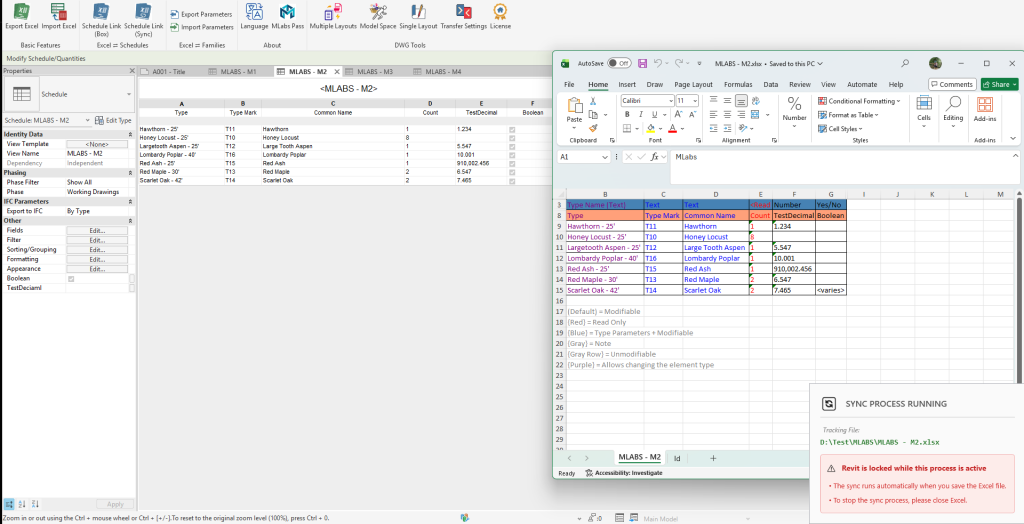
This tool keeps all the same features as the standard Box method, but adds real-time syncing! You can make tweaks in your spreadsheet, and the second you hit “Save”, those updates are instantly pushed to your live BIM model.
Please note: While you’re using this live sync feature, your main Revit window will be temporarily locked.
3. Excel ⇆ Parameters
(Waiting for update)
From Version 6.5.0 [Jul 18, 2026]
* Reorganized the Parameter tools into two dedicated command groups for a clearer workflow:
Group 1 – Parameter Management
– Export Parameters: Export all parameter properties (name, formula, etc.) to Excel. Available only for Revit family documents (.rfa). You can edit parameters in Excel, including renaming parameters, modifying formulas, and changing Instance/Type settings. You can delete parameter rows, but adding new rows is not supported.
– Import Parameters: Import all parameters from Excel, including shared parameters. Existing parameters will be updated, while missing parameters will be created automatically. Supports importing one Excel file into multiple family files.
Group 2 – Family Properties
– Export Properties: Export family properties to Excel.
– Import Properties: Import family properties from an Excel file.
4. Utilities
4.1. SheetGen
a. Columns & Features
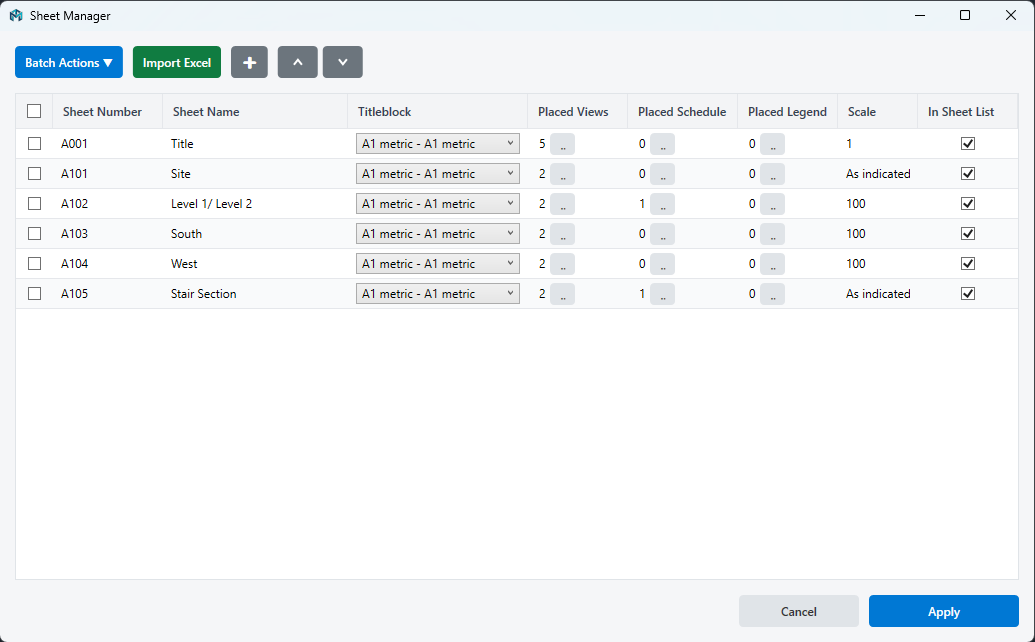
- Checkbox: Select multiple rows (each row represents a Revit sheet) to execute commands simultaneously.
- Sheet Number & Name: Click and type directly into the cells to modify these values.
- Titleblock: Choose a titleblock from the dropdown list. You can apply a titleblock to multiple sheets at once by multi-selecting rows.
- Placed Views / Schedules / Legends: Displays the count of items currently on the sheet. Click the “…” button to easily add or remove them.
- Scale: Enter the scale value directly. Multi-selection is supported for bulk editing.
- Appears In Sheet List: Check or uncheck to toggle the sheet’s visibility within the Revit sheet list. Supports bulk toggling.
- Import Excel: Quickly generate sheets based on custom rules imported directly from an Excel file.
- Add Button (+): Instantly create a new sheet.
- Up/Down Arrows: Reorder selected rows. This is especially useful for preparing the order of your sheets before running the “Batch Renumber” action.
b. Batch Actions
Note: These actions are only available after selecting one or more sheets using the checkboxes.
- Batch Delete Sheets: Deletes all selected sheets from your project.
- Batch Renumber: Sequentially renumbers selected sheets based on their current order in the table.
- Batch Modify Sections: Renumbers and renames sections following your custom rules.
- Batch Rename Sheets: Automatically renames sheets based on the names of their placed views.
- Batch Align Views: Quickly aligns views across multiple sheets based on the layout of the first selected sheet in the table. Note: Only sheets containing the identical placed views will be aligned.
4.2. Crop View
Instantly adjust and apply a crop region to the active view by simply selecting a rectangular area on your screen. This tool automatically handles view template overrides, resets custom crop shapes if needed, and effortlessly toggles crop visibility and activity.
4.3. Family Properties
Inside your Project (.rvt): Select one or multiple family elements around your project. Run the tool, then pick a spot on your computer to save the new .xlsx file.
4.4. Import Properties
Select your edited Excel file to push all those property changes right back into your Revit families.
Developer Note: We’re always working to make this feature even better! If you run into any weird bugs or issues, please send us your logs or feedback so we can keep improving it. Thanks for the help!
Export Import Excel
Easily boost what Revit can do and pull out your data with just a single click. Export your project stuff to Excel and bring it right back in without a hitch, saving you tons of manual data entry!
Custom Installer Autodesk Marketplace