

 ALL PLUGINS
 CONTACT
1. Excel ⇄ Schedules
The Excel ⇄ Schedules suite provides high-fidelity export of Revit schedules to Excel and seamless import of Excel spreadsheets directly into Revit schedule headers, preserving visual formatting without modifying underlying model parameters.
1.1. To Excel
Export single or multiple Revit schedules to formatted Excel workbooks with custom borders, cell alignment, tab and header colors, number formats, and associated element images.
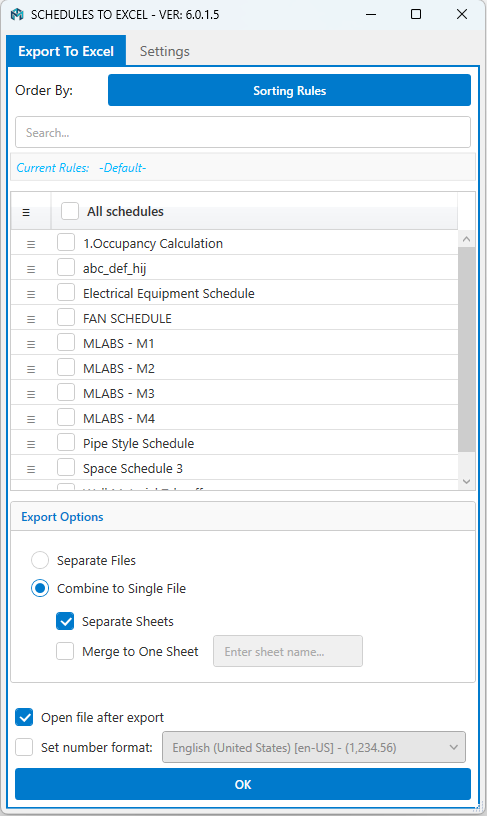
a. Export To Excel Tab
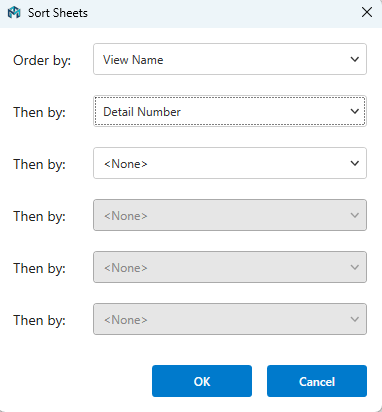
- Order By & Sorting Rules: Sort schedules using custom multi-level rules. Supports up to six levels of nested sorting to organize items exactly as desired.
- Schedule List: Shows all available schedules in the project. Drag and drop rows to set the order of worksheets in the exported file.
- Export Options:
- Separate Files: Saves each schedule into its own Excel file.
- Combine to Single File:
- Separate Sheets: Combines selected schedules into one Excel workbook with individual tabs.
- Merge to One Sheet: Consolidates all data into a single master continuous sheet.
- Open File After Export: Automatically opens Excel as soon as the export finishes.
- Set Number Format: Automatically formats numbers according to regional settings (decimal and thousand separators).
b. Setting Tab
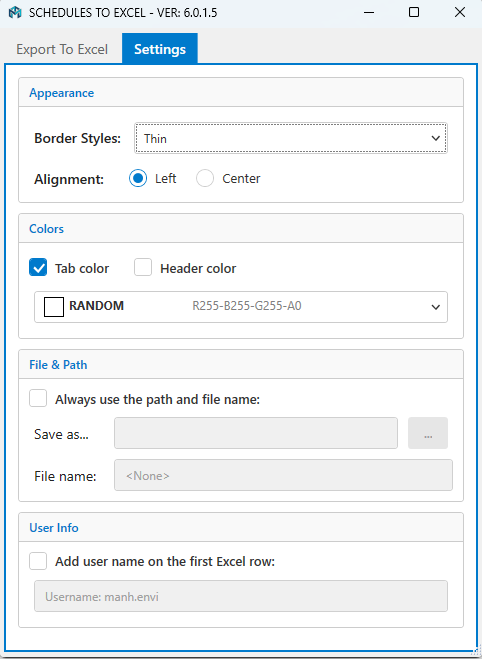
- Appearance: Select custom cell border styles and text alignments.
- Colors: Customize worksheet tab colors and header background colors.
- File & Path: Configure default output folders and standardized file naming rules.
- User Info: Optionally stamps the exporter’s username into the first row of the sheet.
1.2. TableGen
TableGen brings Excel spreadsheets, specifications, calculation notes, and legends directly into Revit schedule headers with original formatting, fonts, alignments, and images intact.
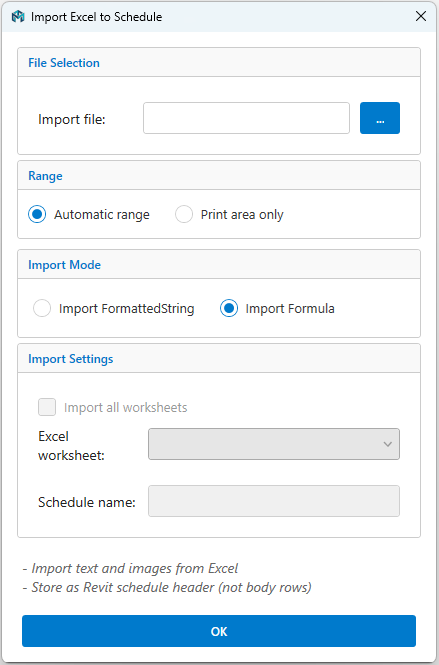
- File Selection: Choose any standard Excel workbook (
.xlsx). - Range Detection: Choose Automatic Range to parse all content or restrict strictly to the Excel Print Area.
- Import Mode: Import formatted text results or raw formulas directly into Revit.
- Import All Worksheets: Batch import multiple worksheets at once into corresponding Revit schedules.
1.3. Restore Excel
- Automatic Document Scan: Automatically identifies all schedules containing TableGen data and flags obsolete or orphaned records.
- Real-Time Search & Filter: Quick filter by schedule name to find exactly what you need.
- Selective or Batch Restoration:
- Single Workbook: Combines all selected schedules into a single Excel file with multiple tabs.
- Separate Files: Restores each selected schedule into its own distinct
.xlsxfile.
- Storage Cleanup: Delete obsolete stored data records from the project to reduce file size.
2. Schedule Link (Two-Way Sync)
2.1. Schedule Link (Box)
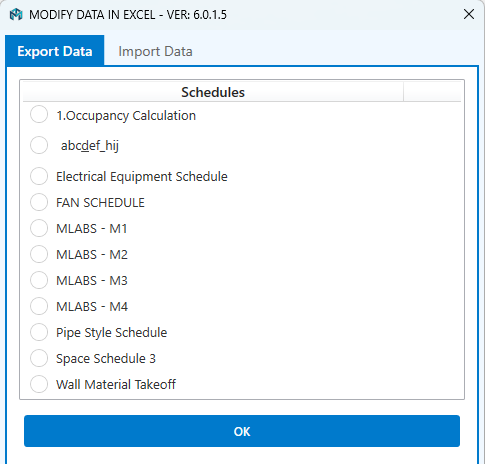
The Schedule Link (Box) manager window provides full control over batch exporting Revit schedules to Excel, editing parameter values in bulk, and importing updates back to elements in one coordinated pass.
Exported Excel sheets use standard color-coding to highlight editable and locked parameter data:
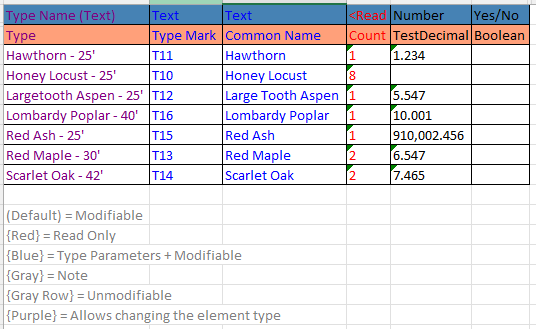
- Black Text (Default): Instance Parameters — fully editable.
- Blue Text: Type Parameters — editing modifies all instances of that type.
- Purple Text: Type Names — changing to an existing type assigns it; entering a new name creates a new Family Type in Revit.
- Red Text: Read-only parameters (locked by Revit built-in rules).
- Gray Text / Highlighted Row: System annotations, locked IDs, or non-syncable rows.
- Boolean Yes/No: Type “Yes” or “No” matching the active language convention.
After editing and saving in Excel, open the Import tab in Schedule Link (Box) to push all modifications into your Revit model.
2.2. Schedule Link (Sync)
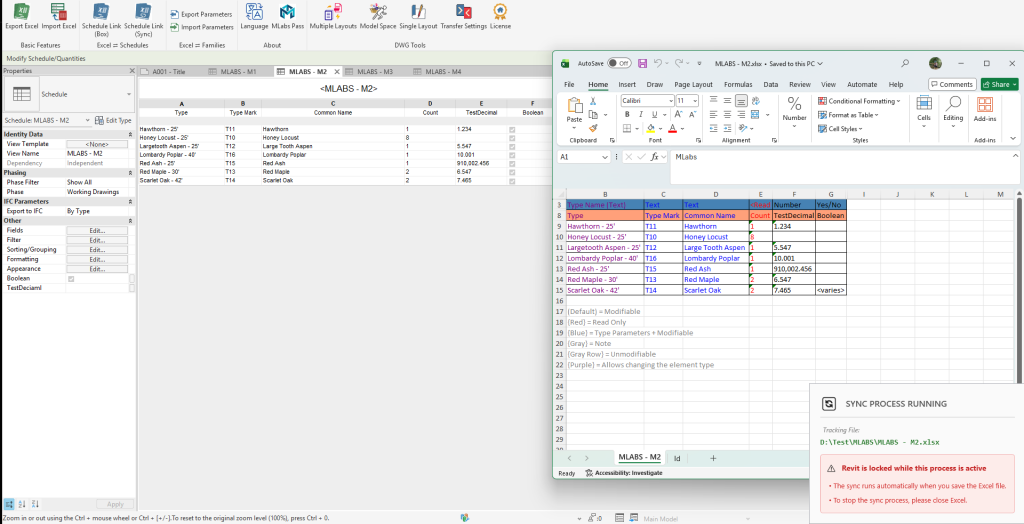
Experience instant, two-way parameter synchronization for the active schedule view. When started, the schedule opens in Excel while a background listener monitors file save events.
Notice: During active listening, the Revit UI is safely locked to prevent concurrent edit conflicts until sync completes.
2.3. Logs (Audit & History Viewer)
- Hierarchical Session Tree: Browse chronological import events categorized by timestamp, user, and target schedule view.
- Detailed Parameter Change Grid: Inspect Element ID, Parameter Name, Old Value, and New Value side-by-side with color diff highlights.
- Model Data Restoration: Select any historical snapshot and restore original parameter values back into the Revit model with one click.
- Retention Management: Adjust log history retention limits and purge old logs to keep projects lightweight.
3. Excel ⇄ Parameters
Auditing and modifying family parameters directly inside the Revit Family Editor is slow and repetitive. The Excel ⇄ Parameters toolset allows you to export, batch-edit, calculate formulas in Excel, and write them back into family files effortlessly.
3.1. Export Params
Export the full list of parameters, types, formulas, and property settings of a Revit Family to an Excel spreadsheet for easy viewing, batch editing, and auditing.
- Dual-Mode Execution:
- In Family Documents (.rfa): Runs directly on the open family to extract all parameters, formulas, and types.
- In Project Documents (.rvt): Pre-select or graphically pick any Family Instance in a floor plan, 3D view, or section; the tool automatically resolves and exports the underlying family’s parameters.
- Rich Export Schema: Captures Parameter Name, Group, Formula, Type/Instance flag, and values across all family types in clean Excel columns.
3.2. Import Params
Read modified formulas, parameter names, and type configurations from your edited Excel file and apply them back to Revit families in bulk.
- Batch Formula & Name Updates: Rename parameters and apply complex formulas across all family types at once.
- Automatic Parameter Registration: When importing shared parameters, missing parameters are automatically created and assigned to designated parameter groups.
- Multi-Family Batch Processing: Apply a single standardized parameter spreadsheet across multiple target family files without opening each one manually.
4. Utilities
A collection of productivity boosters designed to streamline daily BIM documentation, sheet setup, and Excel file management.
4.1. SheetGen
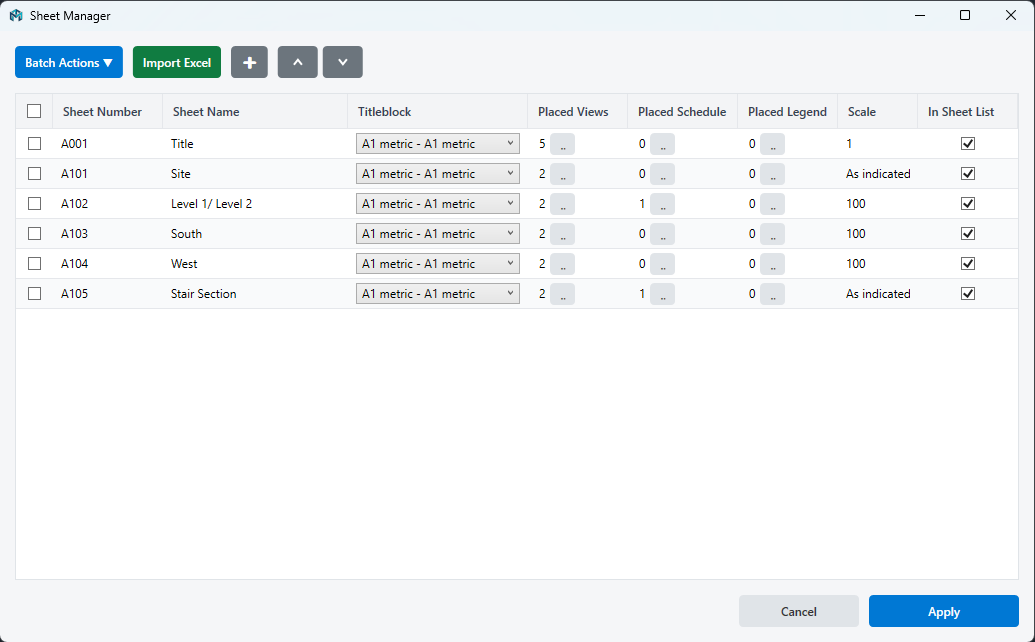
a. Columns & Features
- Multi-Row Selection: Select multiple sheets to modify properties simultaneously.
- Sheet Number & Name: Direct in-grid inline editing.
- Titleblock Assignment: Apply titleblock families to multiple sheets simultaneously via dropdown.
- Placed Views Management: View count of placed views, schedules, and legends; add or remove views with the “…” picker.
- Scale & Sheet List Toggle: Bulk-edit sheet scales and toggle “Appears In Sheet List” visibility.
- Import Excel: Bulk-generate new sheets based on an external Excel sheet matrix.
- Reordering (Up/Down): Reorder sheet rows prior to executing sequential batch renumbering.
b. Batch Actions
- Batch Delete Sheets: Remove selected sheets from the project in bulk.
- Batch Renumber: Sequentially renumber sheets based on their current table order.
- Batch Rename Sheets: Automatically rename sheets to match the primary placed view name.
- Batch Align Views: Align views across multiple sheets using the layout coordinates of the first selected sheet.
4.2. Merge Excel
Merge multiple independent Excel spreadsheets into a single consolidated file directly within Revit without requiring Microsoft Office installed.
- Merge to One Sheet: Stacks multiple tables into a single continuous worksheet, ideal for combining multi-level quantity takeoffs.
- Merge to Multiple Sheets: Gathers selected files into a single master workbook where each file or worksheet becomes a separate tab.
- Selective Worksheet Filter: Choose exactly which sheets to extract from each source file.
- Preserves Formatting: Maintains cell fonts, border styling, number formats, and embedded images.
4.3. Split Excel
Split large workbooks or massive schedule exports into smaller, modular files for sharing or archiving.
- Split by Worksheets: Automatically converts each worksheet tab into an independent
.xlsxfile. - Split by Row Chunks: Break down a massive schedule (e.g. 50,000 rows) into multiple smaller workbooks by specifying a maximum row count per file (e.g. 1,000 rows).
- Keep Header Row: Automatically preserves and replicates table header rows across all split child files.
4.4. Crop View
4.5. Shared Params
Batch add shared parameters from standard Shared Parameter definition text files (.txt) into Revit Family files (.rfa).
- Parameter Group Assignment: Specify the target parameter group (e.g., Identity Data, Dimensions, IFC) during insertion.
- Formula Preservation: When overwriting existing parameters, existing formulas and associations are safely preserved.
- Batch Consistency: Ensure standard office parameters are applied across all family libraries quickly.
5. About & Settings
Manage application preferences, licensing, and interface localization directly from the Ribbon.
5.1. Multi-Language Localization
The plugin natively supports multi-language operation. On launch, it automatically matches Revit’s active language:
- Supported Languages: English (en-US), French (fr-FR), Spanish (es-ES), Simplified Chinese (zh-CN), Traditional Chinese (zh-TW), Brazilian Portuguese (pt-BR), and more.
- Language Selector: Click Language on the Ribbon to switch to any supported language at any time.
5.2. MLabs Pass & License Management
Click MLabs Pass (or MLabs) to open the License Manager window. Here you can check your active access pass, manage machine activations, activate new license keys, and access official support channels.
Export Import Excel
Easily boost what Revit can do and pull out your data with just a single click. Export your project stuff to Excel and bring it right back in without a hitch, saving you tons of manual data entry!
Custom Installer Autodesk Marketplace