

 ALL PLUGINS
 CONTACT
How to Fix Merge Drawings Plugin Loading Issues in AutoCAD
Table of Contents
Here are some common issues you might encounter when merging files between Revit and AutoCAD, along with simple steps to fix them.
Issue 1: The plugin runs normally in Revit, but opens a blank drawing in AutoCAD.
This issue usually happens when the add-in loads incorrectly in AutoCAD. The “Merge Drawings” plugin works seamlessly with both Revit and AutoCAD. When running the plugin in Revit, you should see either a “BUILT-IN” or “STANDARD” status on the interface.
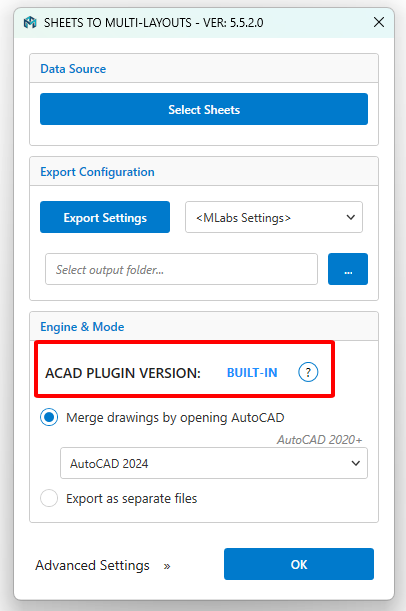
After you finish running the plugin in Revit, the application will automatically switch to AutoCAD to continue the process. If AutoCAD only opens a blank drawing and does nothing else, it means the plugin failed to load inside AutoCAD.
To troubleshoot this issue, please follow these simple steps:
1. Verify your AutoCAD version: Ensure you are using AutoCAD 2020 or a newer version. Please note that AutoCAD LT is not supported.
2. Check the plugin tab: Look for the custom plugin tab in your AutoCAD ribbon. It should be visible and accessible.

If the tab is unavailable, it means the plugin was not loaded into AutoCAD correctly. While this rarely happens, you can easily verify it by attempting a manual load.
3. Test manual loading: Let’s see if the plugin can be loaded manually.
- In AutoCAD, type the command
NETLOADand press Enter. - Navigate to this specific folder path:
%AppData%\Autodesk\ApplicationPlugins\BuiltInAcadMergeSheet.Bundle\Contents - Open the correct folder based on your current AutoCAD version:
- For AutoCAD 2020 – 2024: Select the
2024folder. - For AutoCAD 2025 – 2026: Select the
2025folder. - For AutoCAD 2027 and later: Select the
2027folder.
- For AutoCAD 2020 – 2024: Select the
- Select the
PremiumMergeDwg.dllfile and click Open to load it.
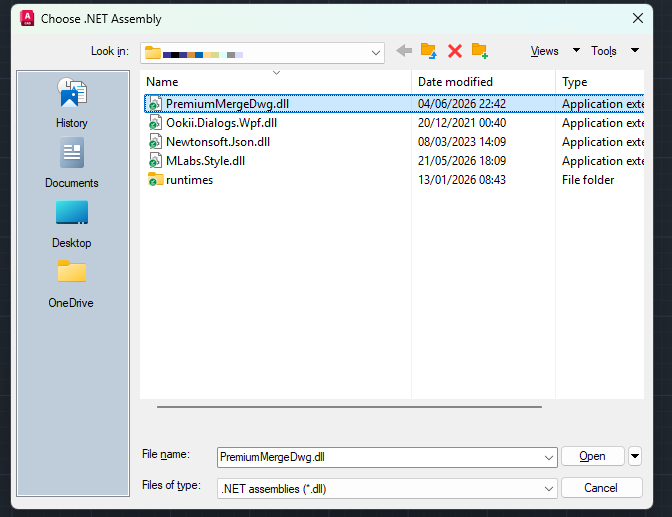
- Type the command
INITMLABSPLUGINSand press Enter. You will see the plugin tab appear in the ribbon. - Click the Merge Drawings or Layouts to Model command to check if it runs properly.
4. Fix automatic loading issues: If your AutoCAD plugin still isn’t loading automatically at startup, the issue is typically caused by disabled automatic loading, secure mode blocking unsigned code, or missing trusted folder paths.
To fix this quickly, check and update the following system variables in the AutoCAD command line:
- Enable APPAUTOLOAD: Type
APPAUTOLOADand press Enter. Ensure the value is set to1to allow plug-ins to load automatically. - Adjust SECURELOAD: Type
SECURELOADand press Enter. Set the value to0(or1provided your plugin folder is in a trusted path). - Set TRUSTEDPATHS: Type
TRUSTEDPATHSand press Enter. Ensure the exact folder where your.bundle,.dll, or.lspfile is stored is included in the trusted paths.
5. Reset AutoCAD to defaults: If all the above methods do not work, you can try resetting AutoCAD to its default settings. See: How to reset AutoCAD to defaults.
Issue 2: “FATAL ERROR: ASC initialization failed. Please reinstall the product.” when opening AutoCAD products.
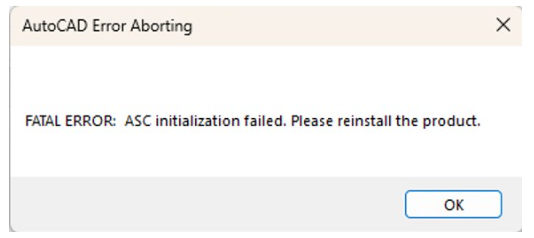
If you encounter this error message, please try the following solutions:
- Set the SDI system variable to 0:
- Type
SDIin the command line and press Enter. - Type
0(zero) and press Enter.
- Type
- Reset AutoCAD to defaults: See the official guide on How to reset AutoCAD to defaults.
- Try a different version: Test if the issue persists on a different version of the AutoCAD product.
- Clean uninstallation: Uninstall the AutoCAD product completely and then reinstall it. A clean uninstallation is highly recommended to resolve deep registry issues.
- Check for OLE links: If the issue only occurs when opening a specific drawing, check whether it contains any OLE links. Break the links and try opening the drawing again. See: To Break a Link to an OLE Object.